

Note
Please follow these instructions rather than other instructions from the internet.
Windows may display a warning that the eSIM profile will be lost and cannot be downloaded again; this does not apply to HP Go Downloadable eSIM Profiles.
Method 1: “Stop Using” and “Delete” Method
Deletes only the HP Go eSIM
1. Ensure you are connected to Wi-Fi before beginning this process.
2. Open Cellular settings.
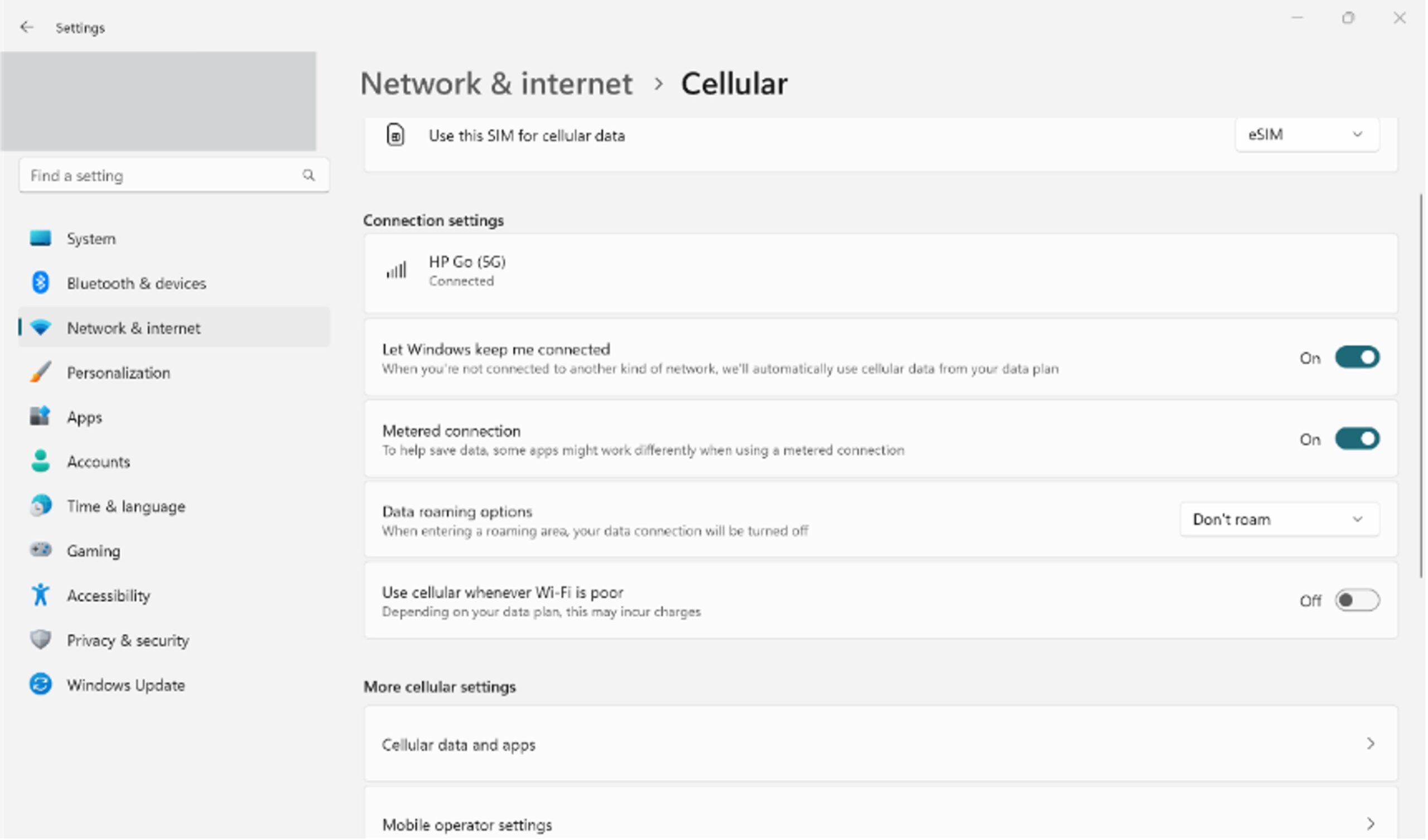
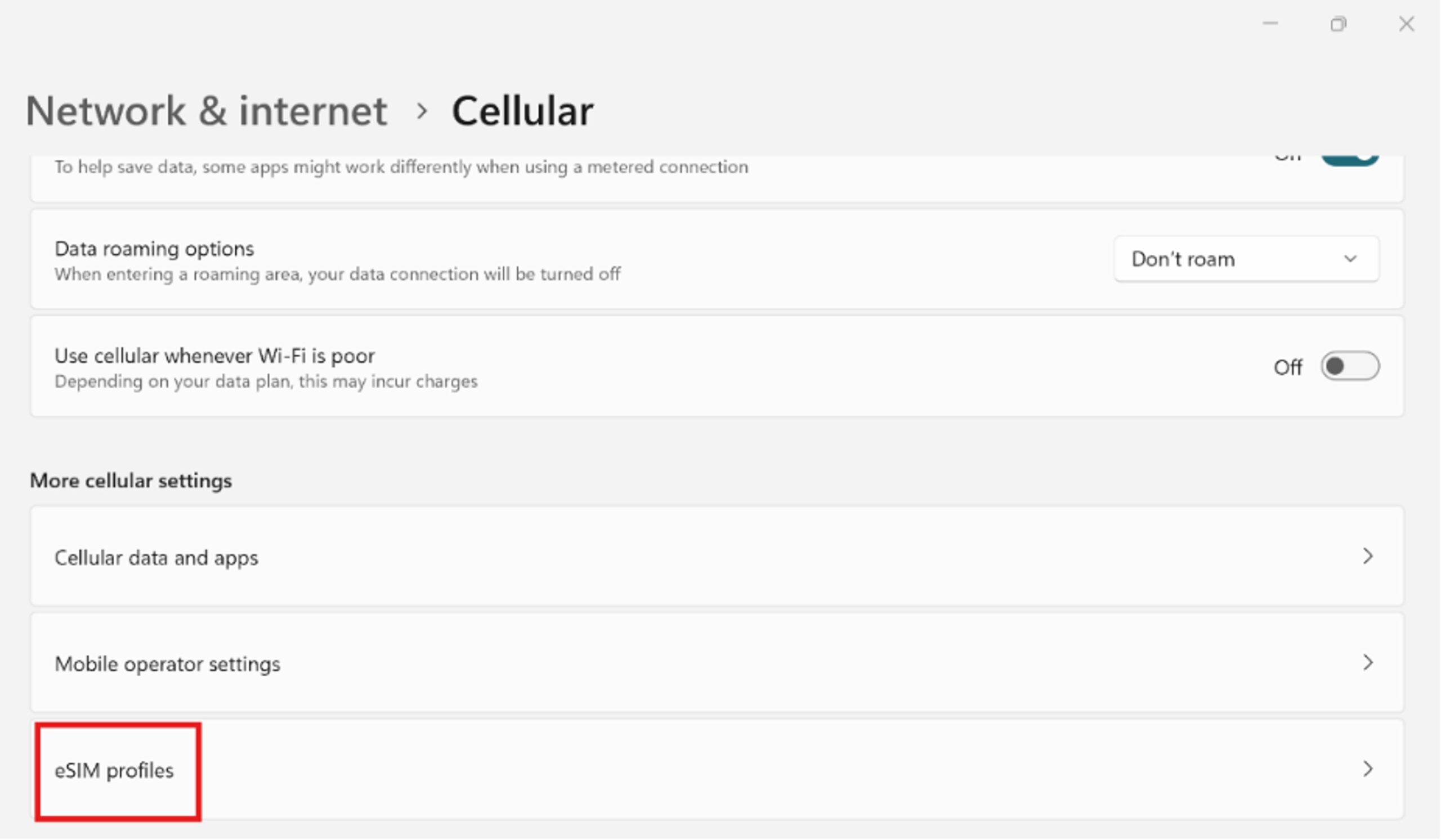
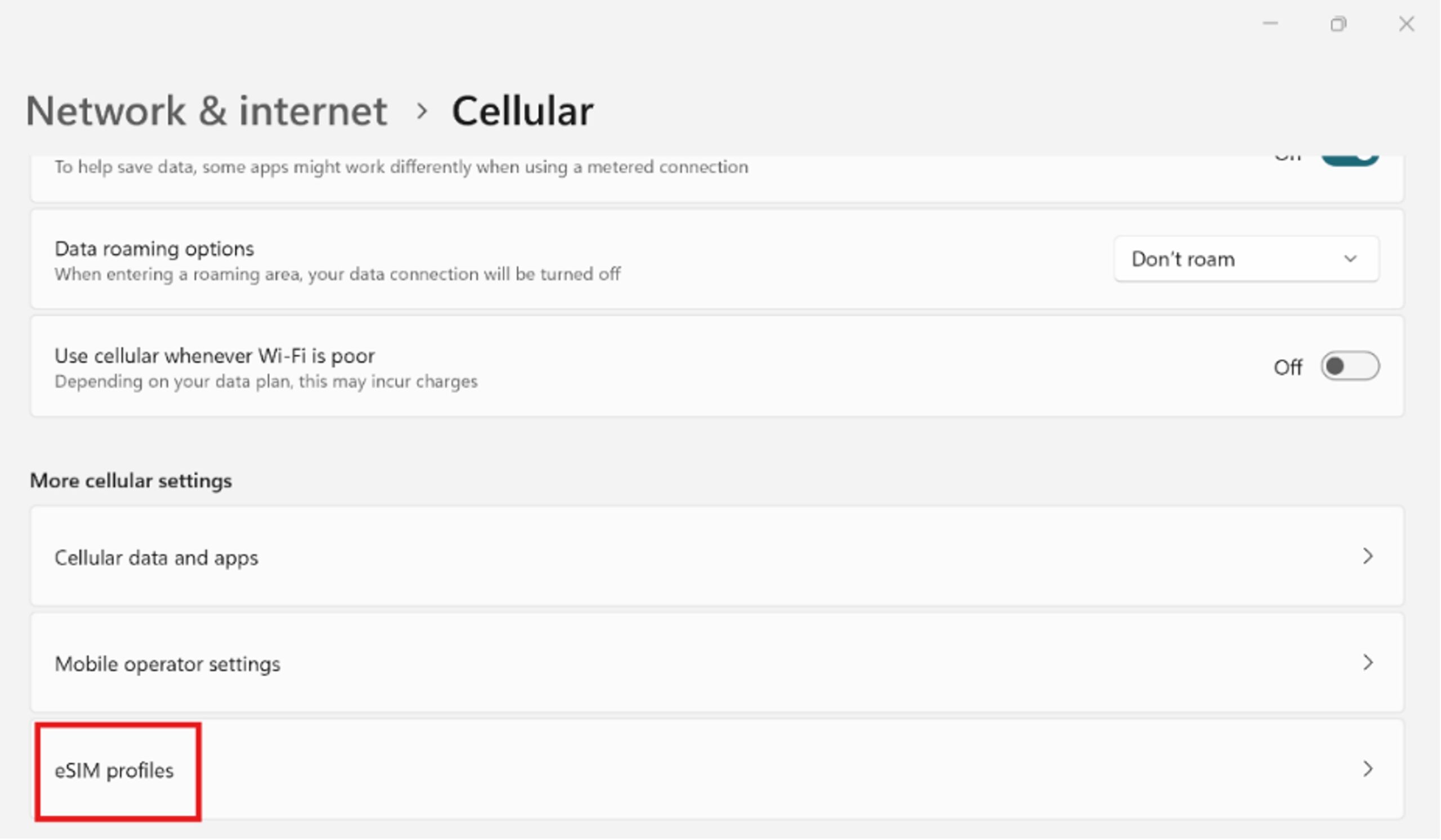
3. Scroll to find the “eSIM profiles” section under “More cellular settings”.
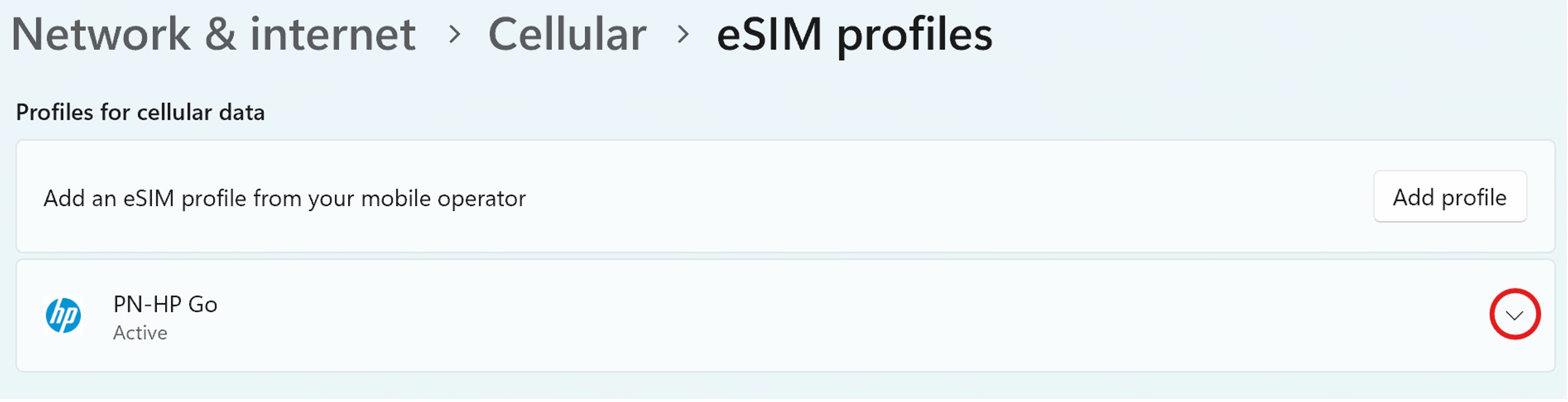
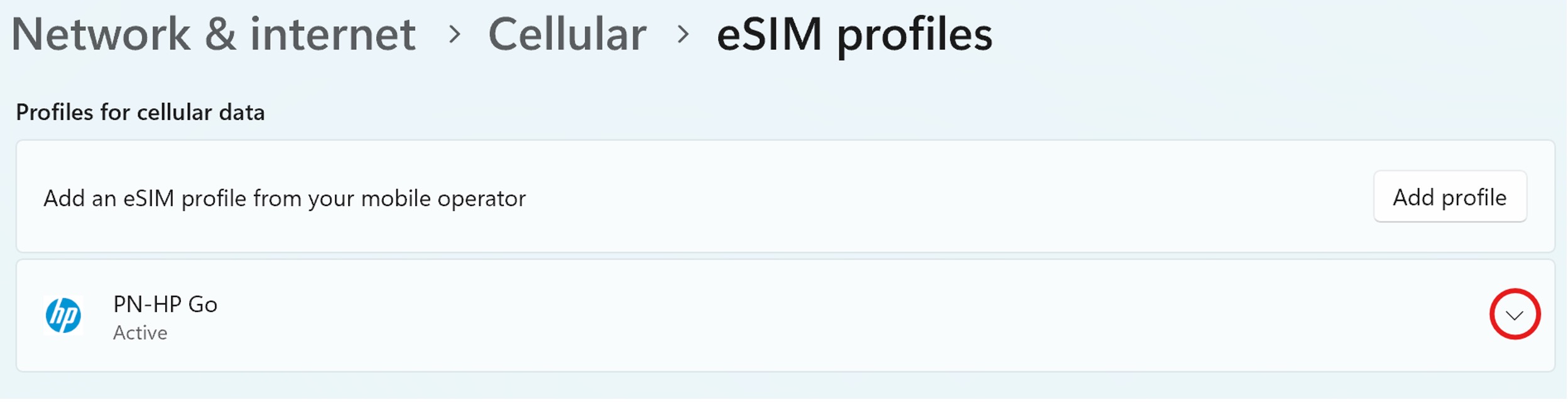
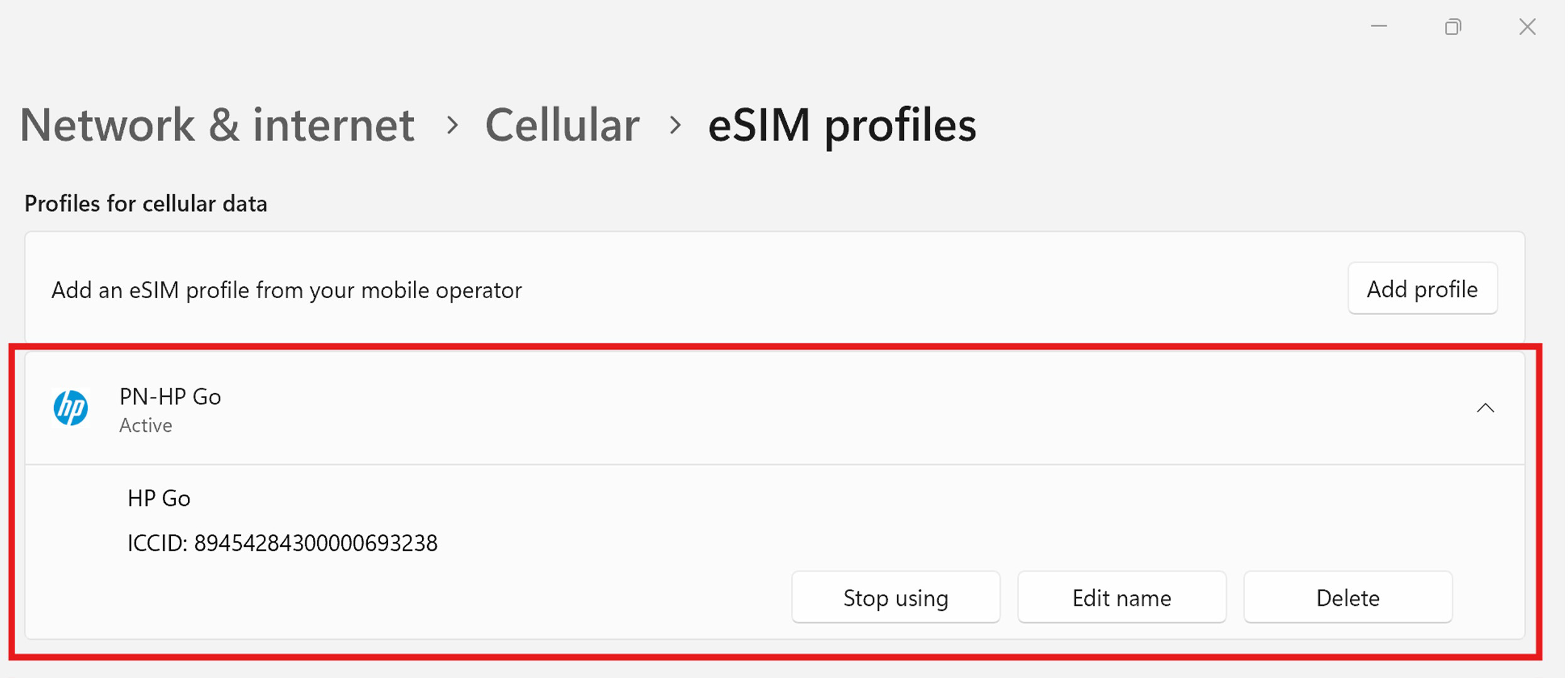
4. Display the information about your HP Go eSIM by clicking the down arrow.
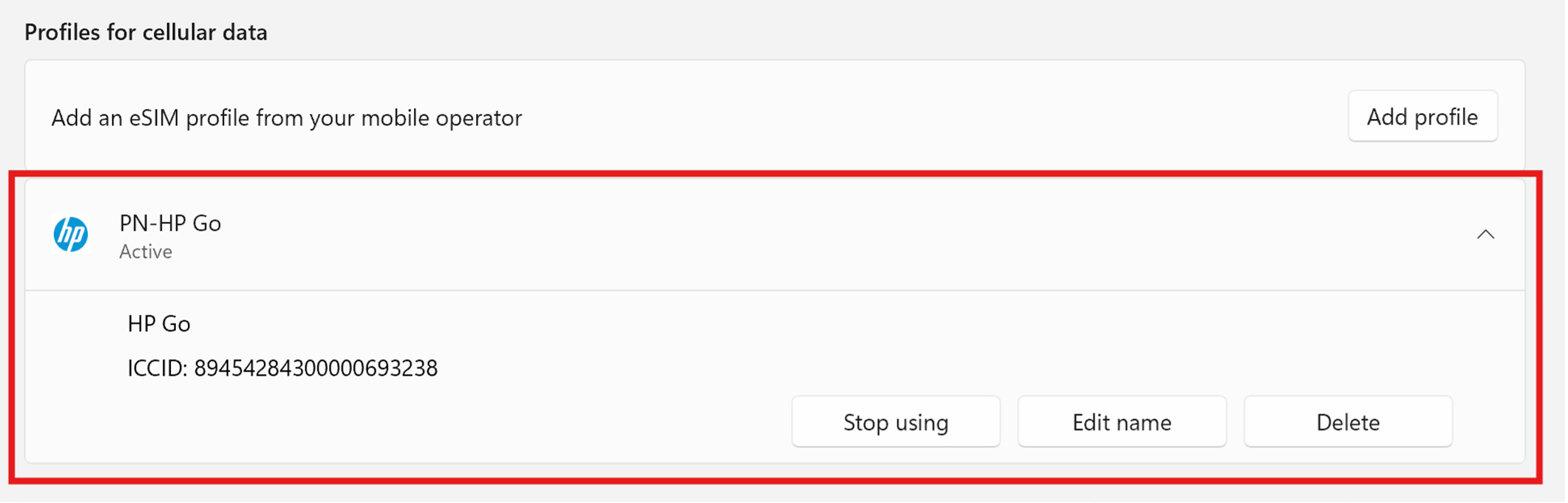
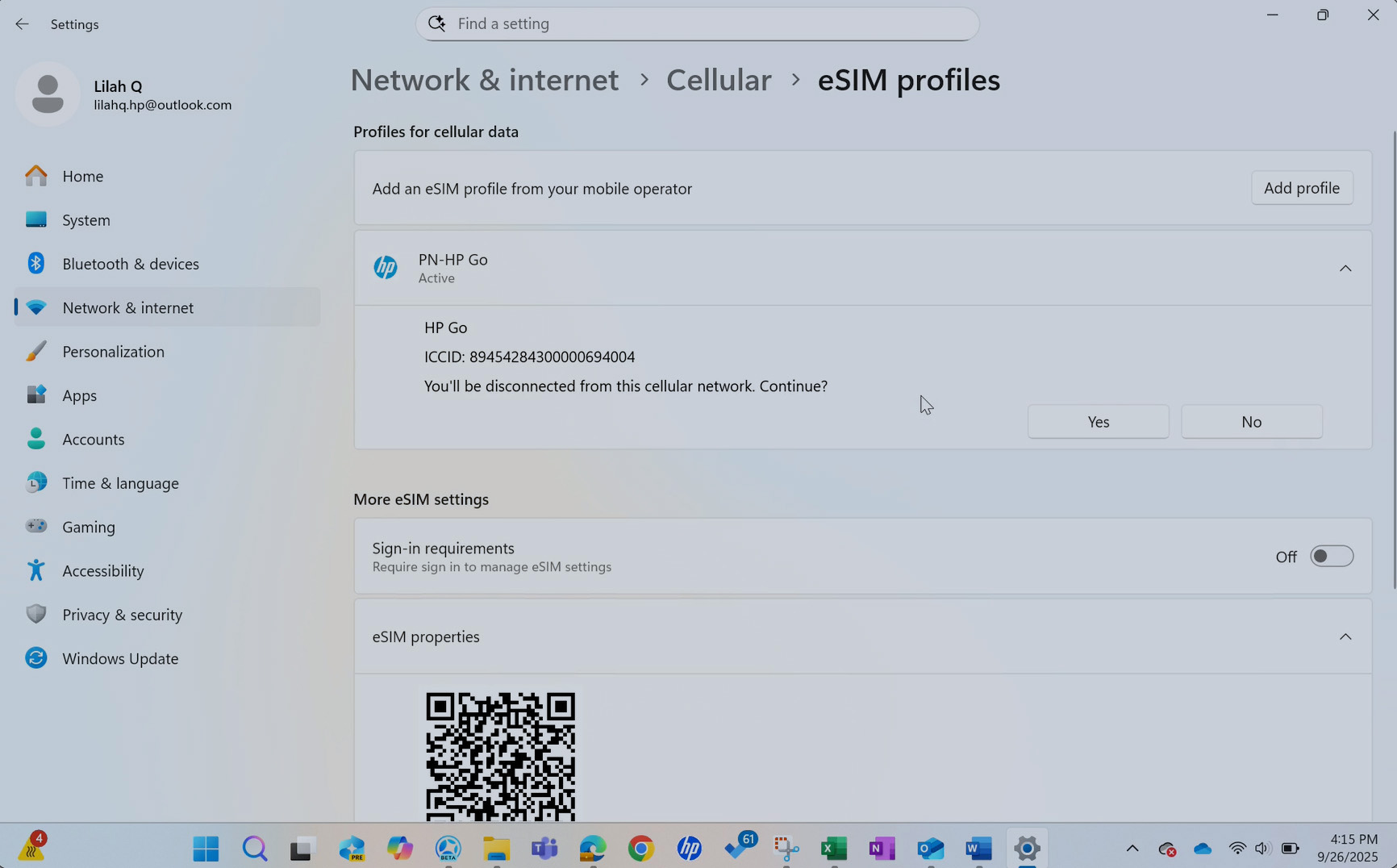
5. Click the "Stop using" button.
Note
This is a critical step, if you do not complete this step before clicking the “Delete” button you may damage the eSIM Profile.

6. Click “Yes”.

7. Next, click the “Delete” button.
Note
Do NOT “Delete” without clicking “Stop using” first. There is a risk that the profile will not be properly released and/or that the status displayed on the HP Go Management Console will not be up to date.

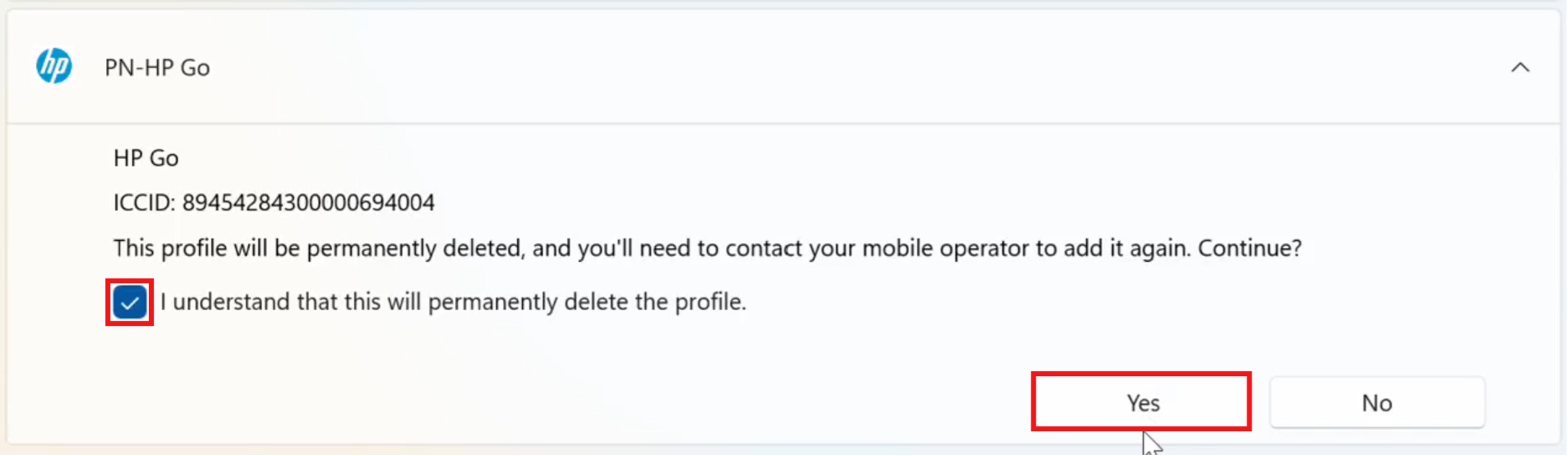
8. Confirm the deletion by checking the “I understand this will permanently delete the profile” box and clicking the “Yes” button.
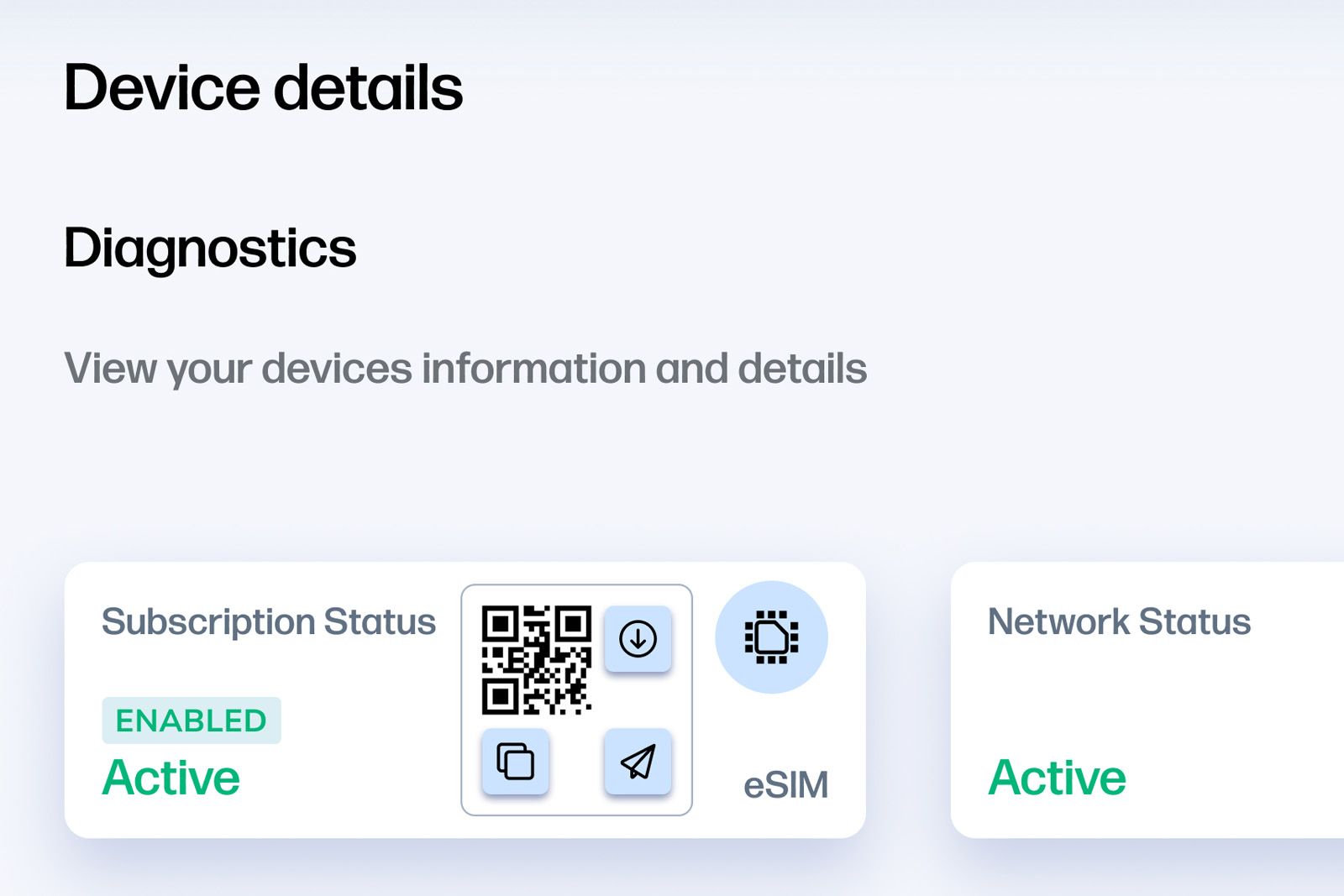
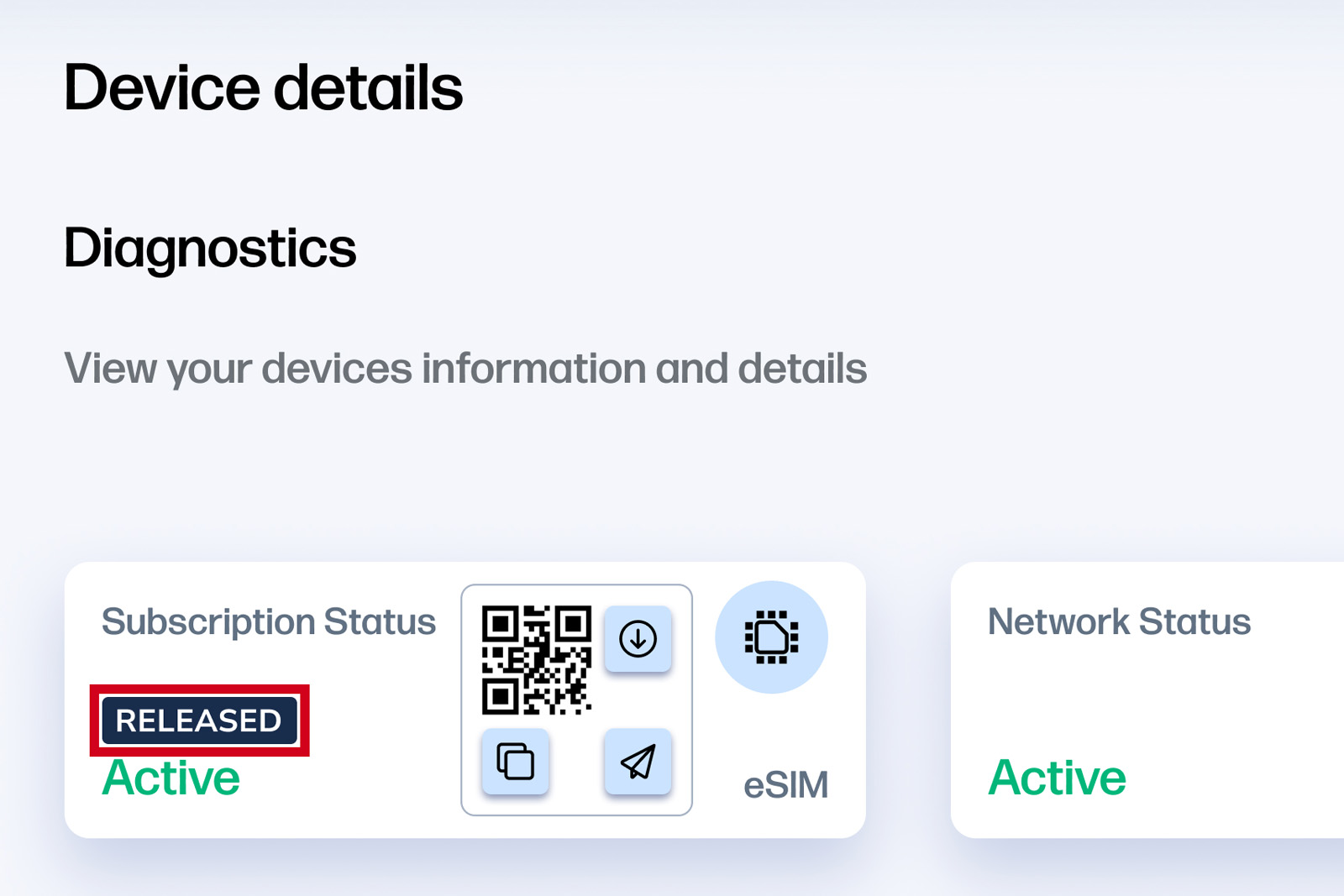
9. Once the profile has been released, it will show as "released" in the HP Go Management Console.
Console view before releasing profile:
Console view after releasing profile:
10. The QR code can now be shared and downloaded on a different device.
Method 1 - Video Instructions:
Method 2: Reset eSIM
Deletes all eSIM Profiles on Device
Note
Using the “Reset” button is a reliable way to release the eSIM profile. However, be aware that if there are other eSIM profiles (from other providers) on the device, they will be all deleted.
1. Ensure you are connected to Wi-Fi before beginning this process.
2. Open Cellular settings.
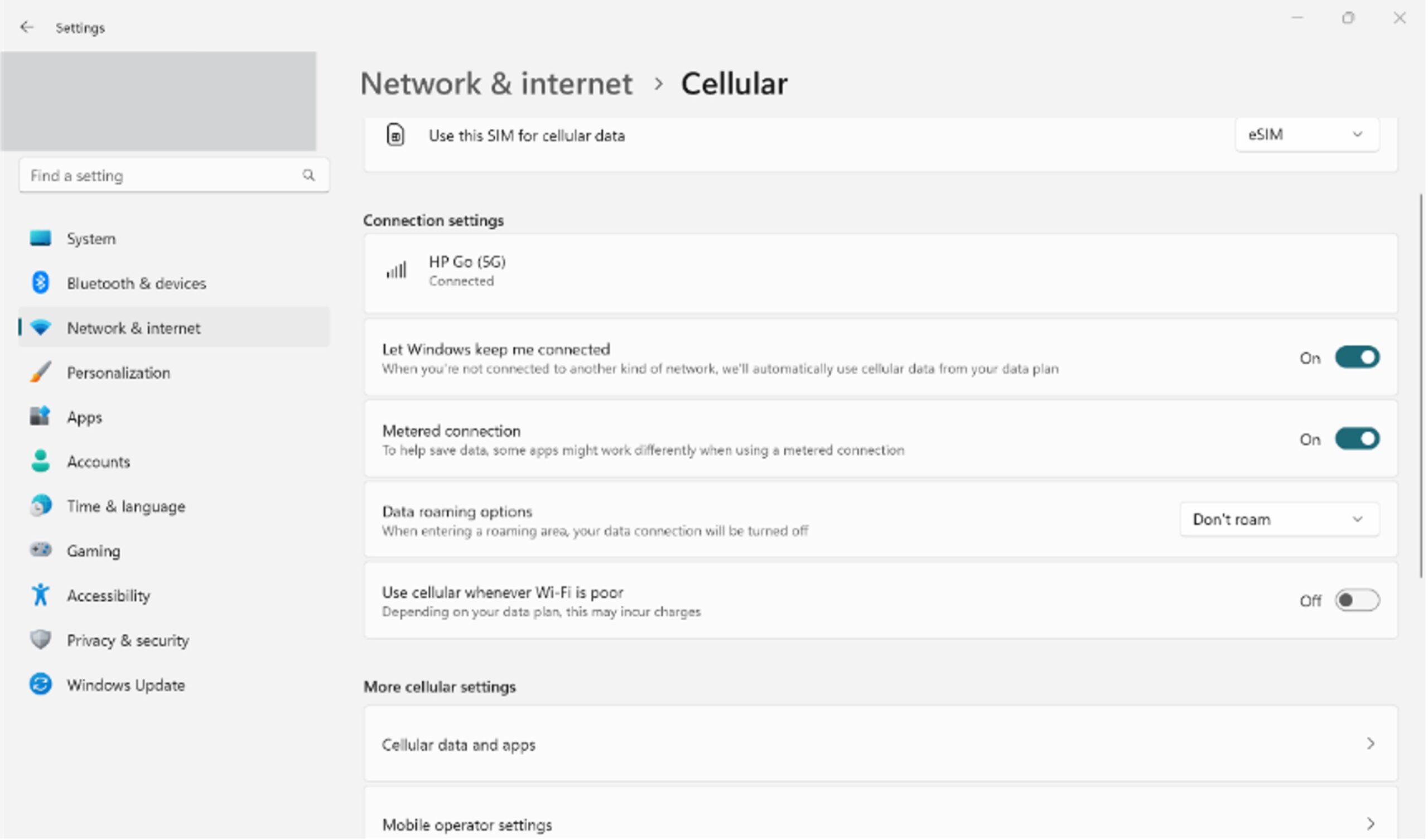
3. Scroll to find the “eSIM profiles” section under “More cellular settings”.
4. Display the information about your HP Go eSIM by clicking the down arrow.
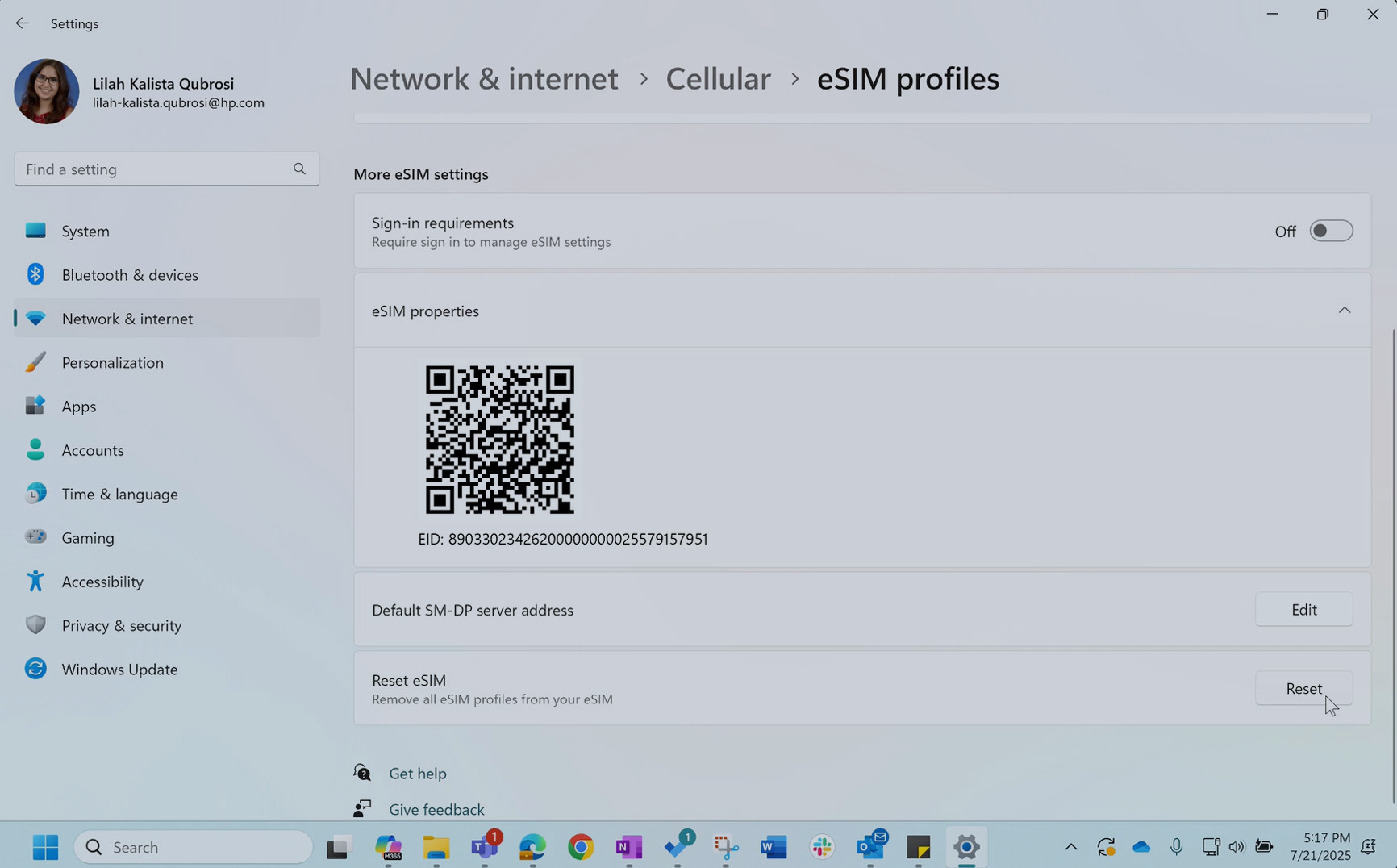
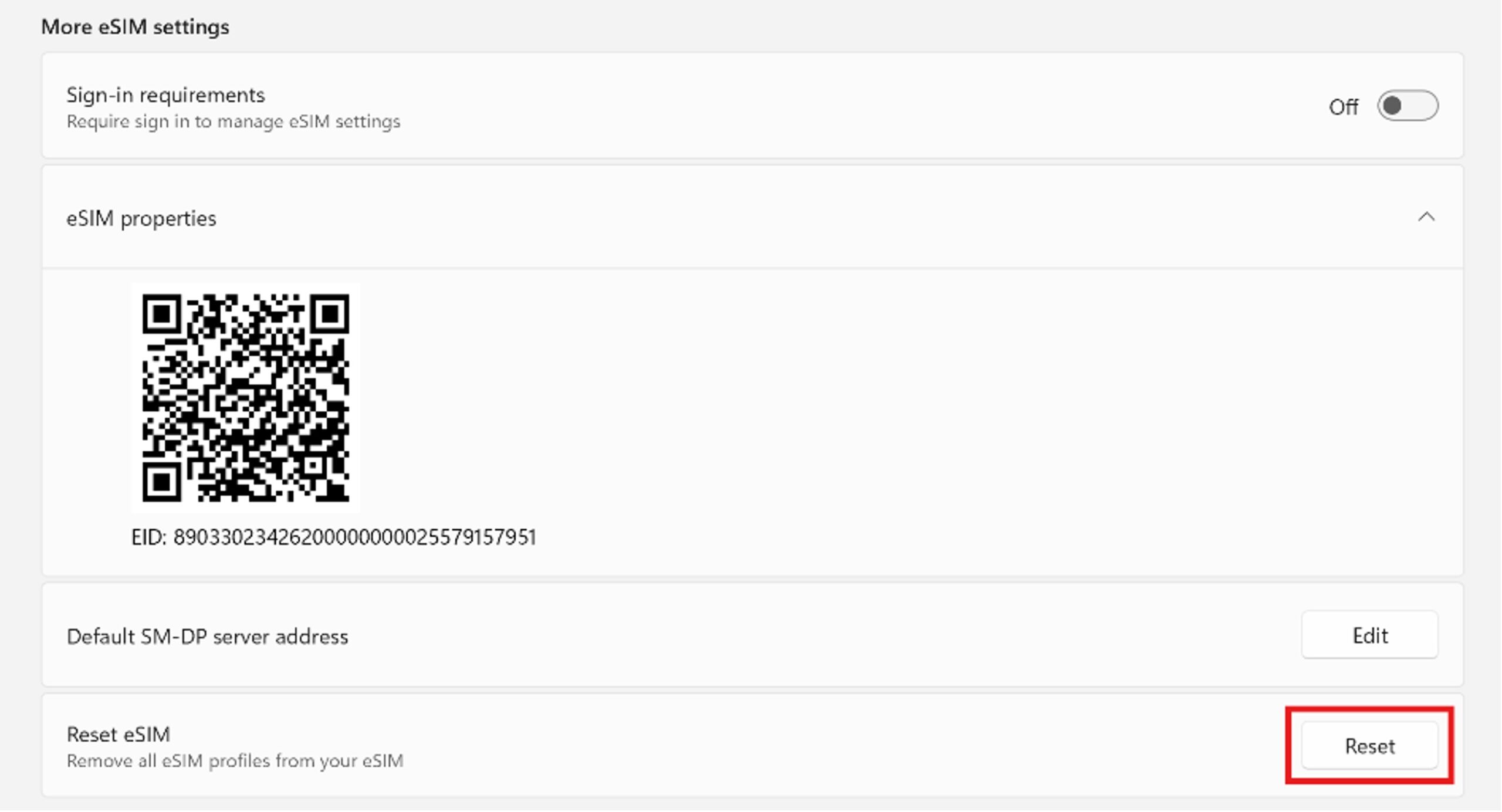
5. Scroll down until you find the “Reset eSIM” section near the bottom of the page. Click the “Reset” button to release the profile.
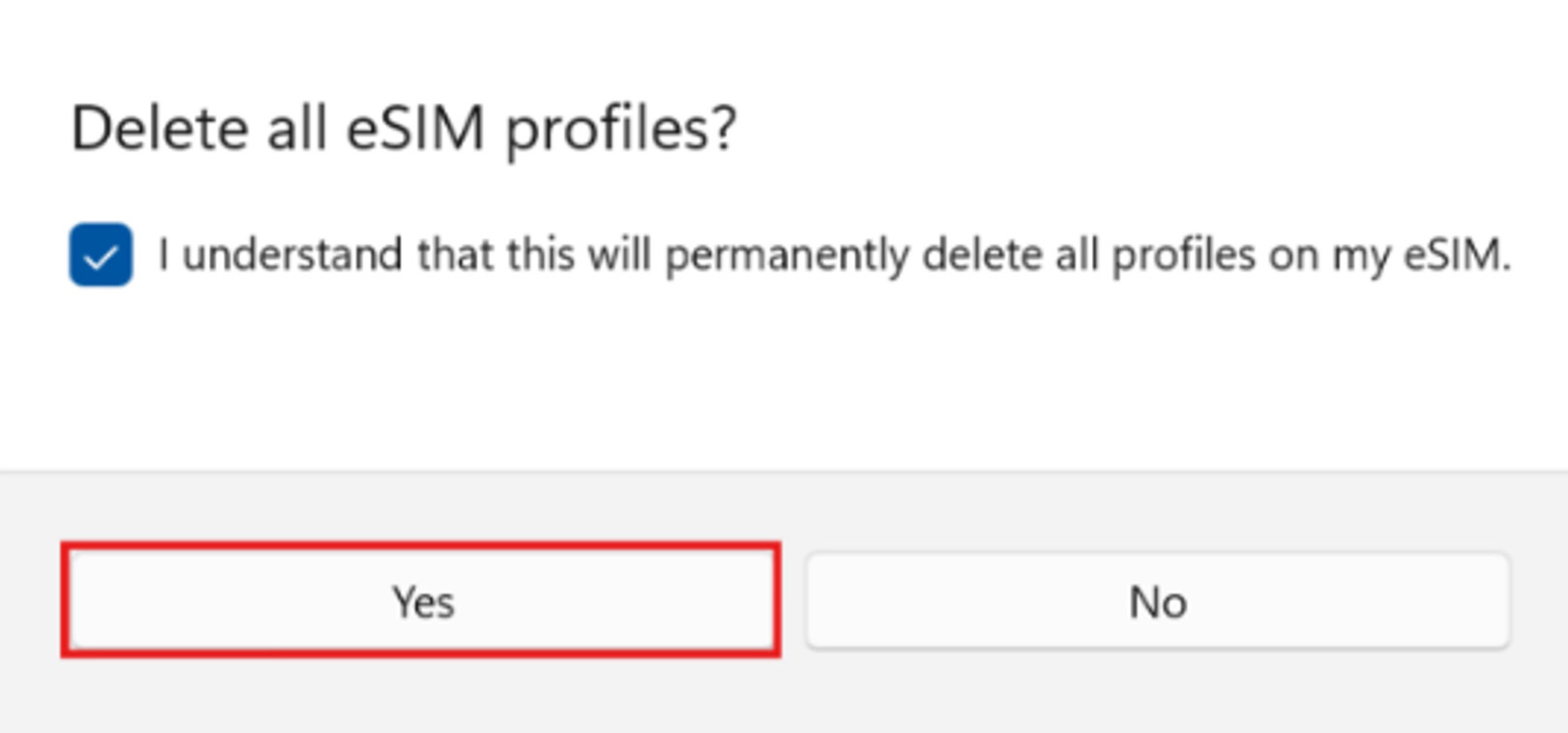
6. Check the “I understand that this will permanently delete all profiles on my eSIM” box and click the “Yes” button.
7. Once the profile has been released, it will show as "released" in the HP Go Management Console.
Console view before releasing profile:
Console view after releasing profile:
8.The QR code can now be shared and downloaded on a different device.
Method 2 - Video Instructions:
If you require further assistance, please go to HP Support website.