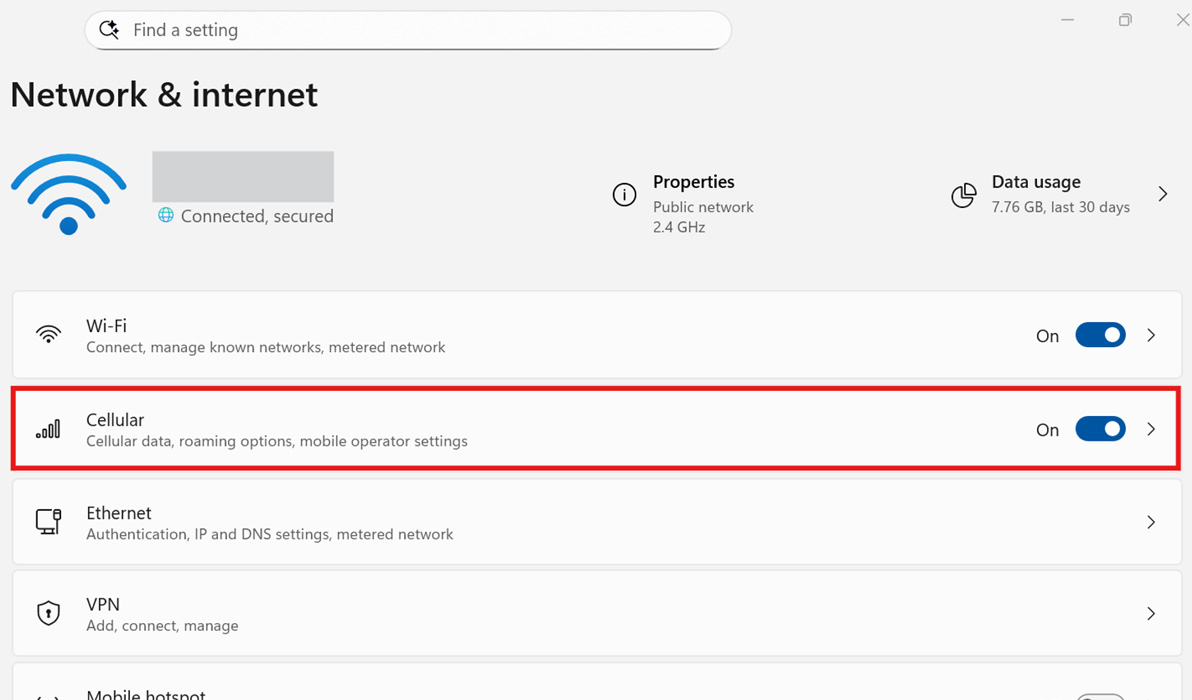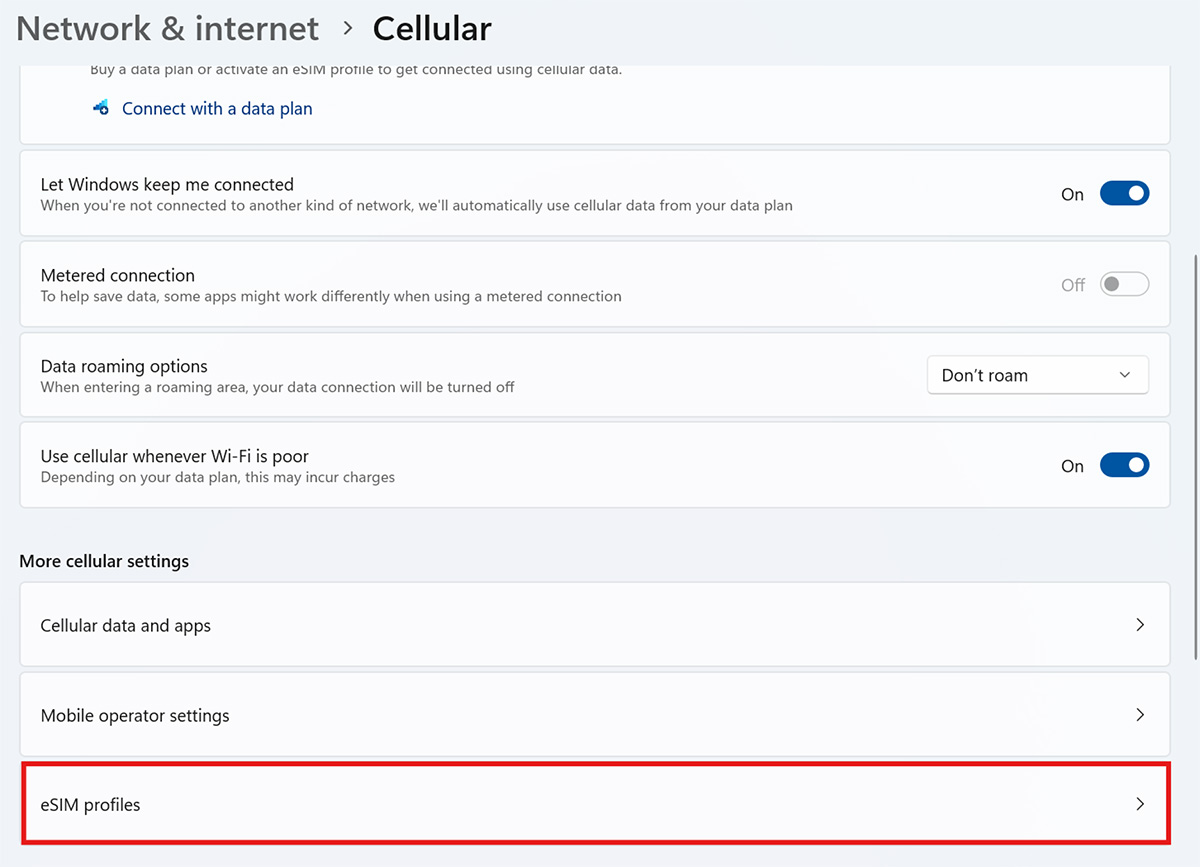

Confirm an APN must be Added
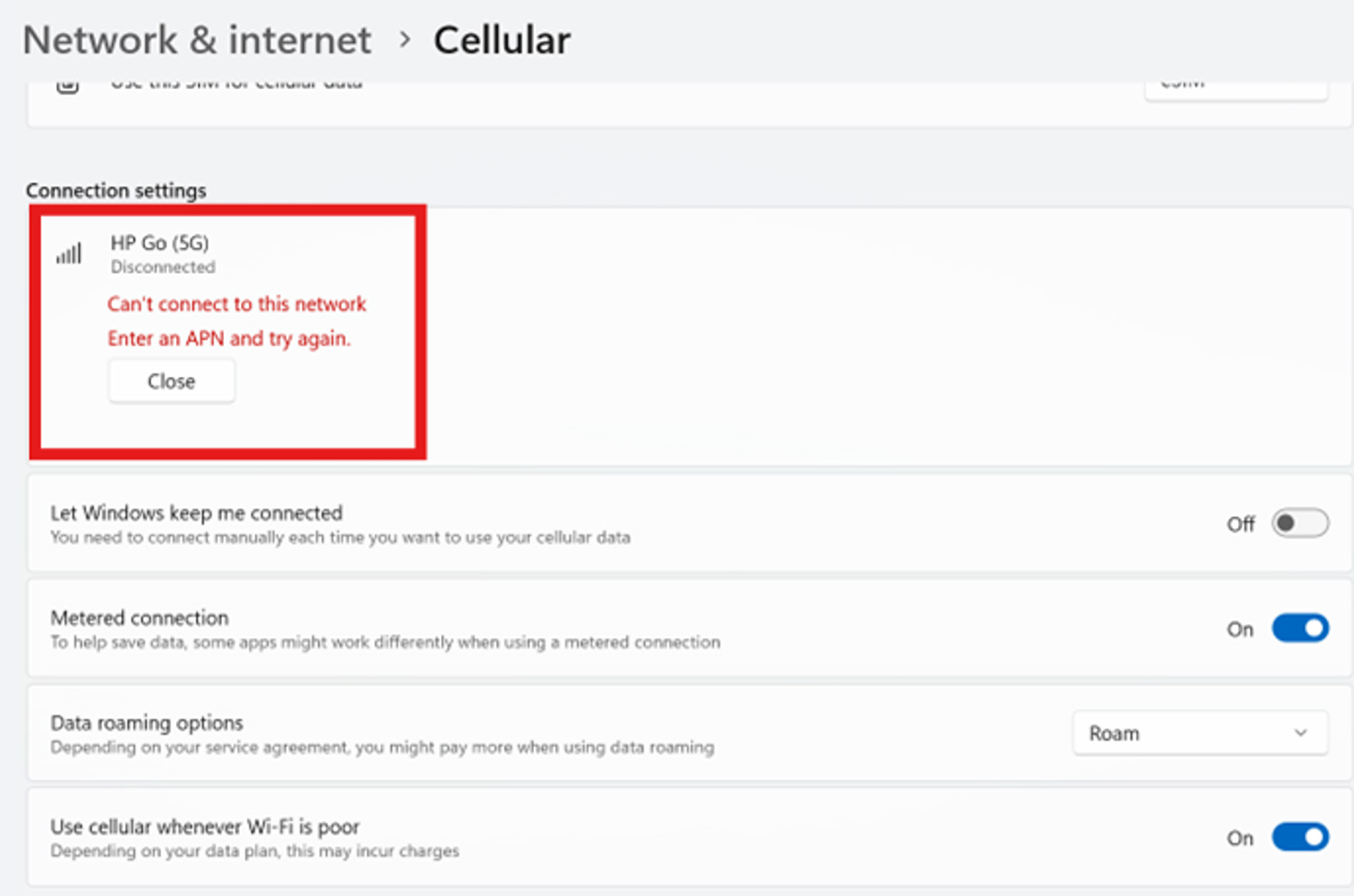
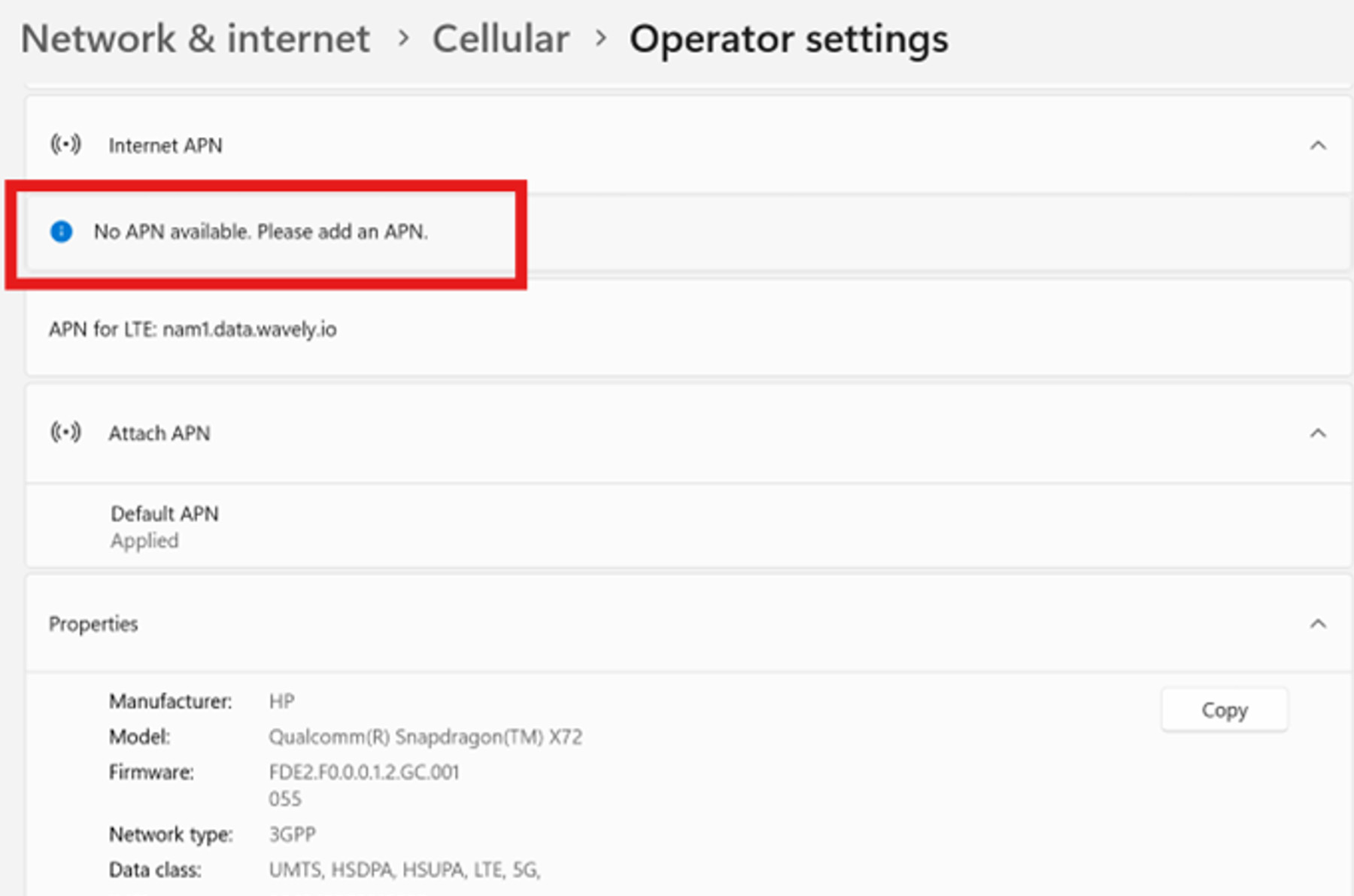
Confirmed the APN is not working:
Confirm no Internet APN.
Can See T-Mobile in list of networks, cannot connect.
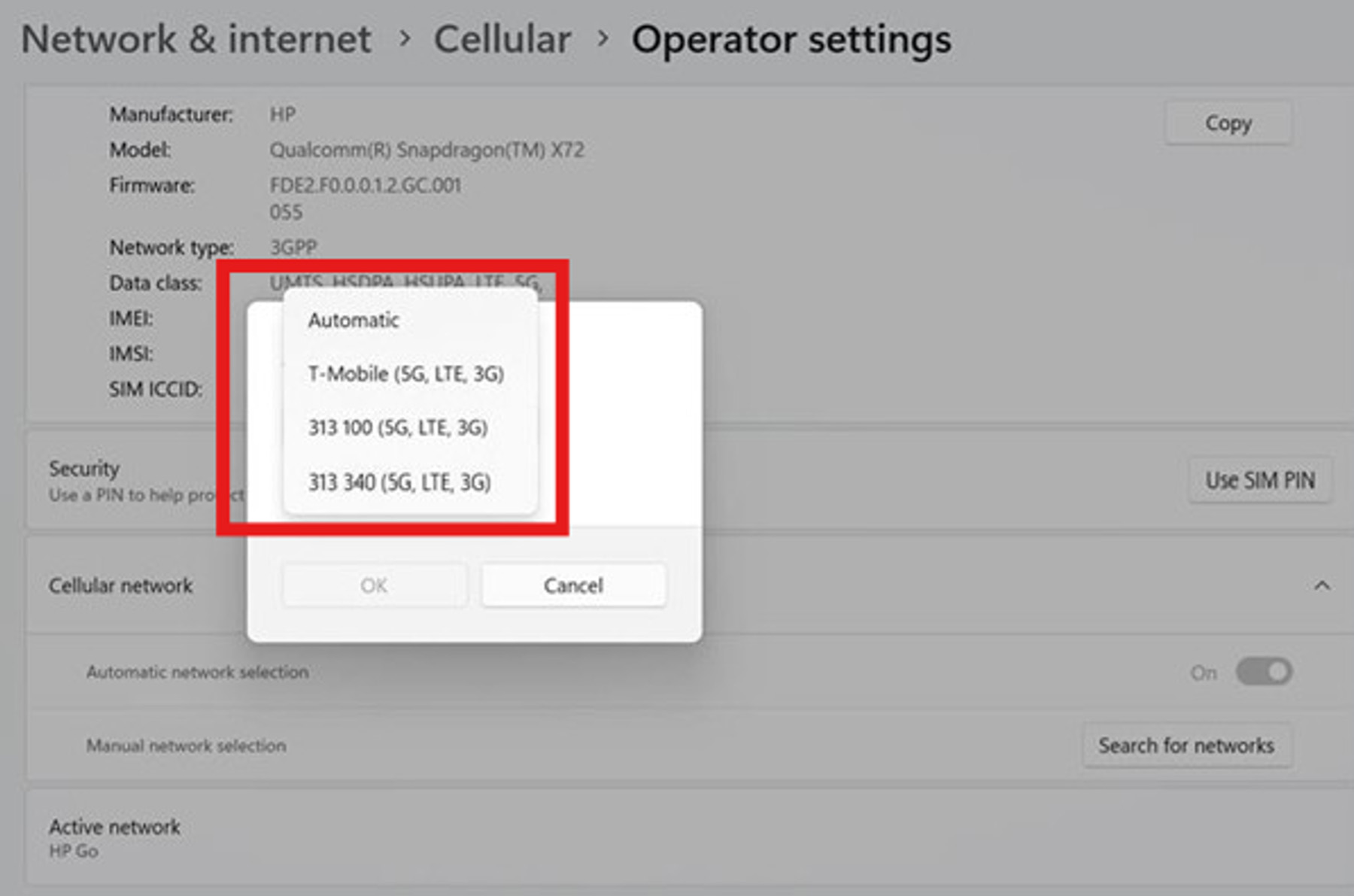
How to Manually Add an APN
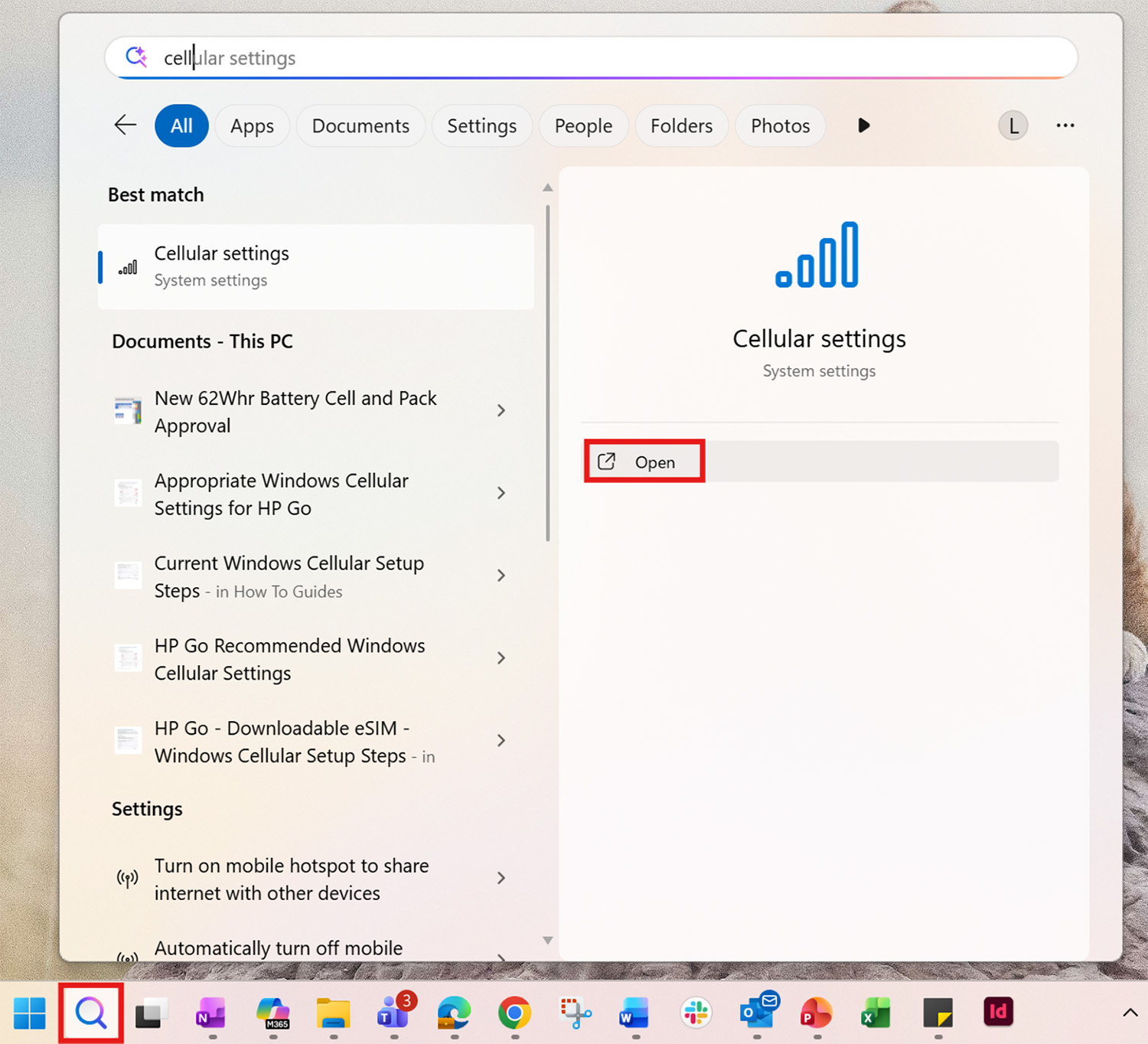
1. Navigate to “Cellular Settings” by searching for “cell” in the Windows search and clicking the “Open” button.
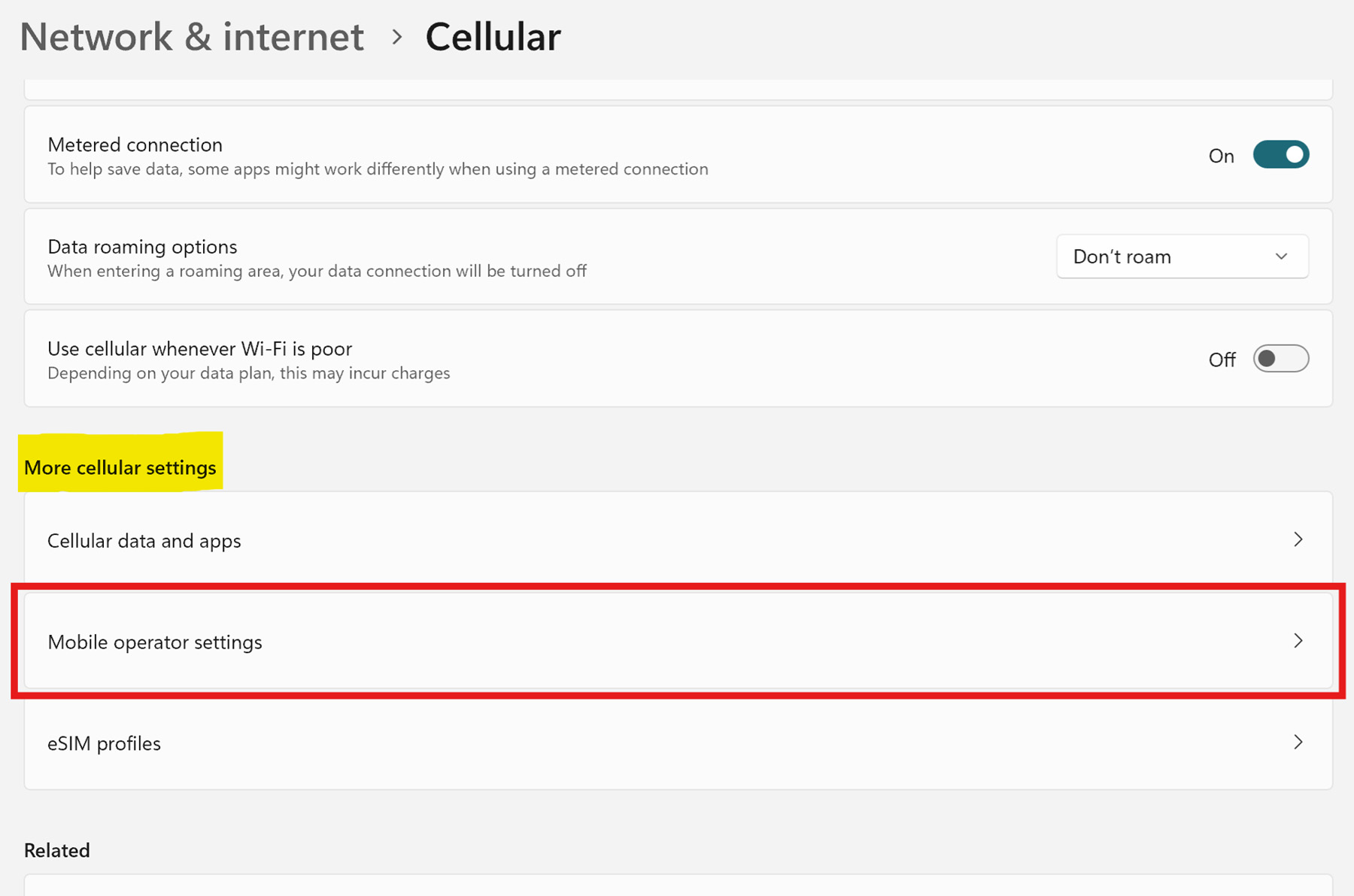
2. From the Cellular page, scroll down to the “More cellular settings” section and click on “Mobile operator settings”.
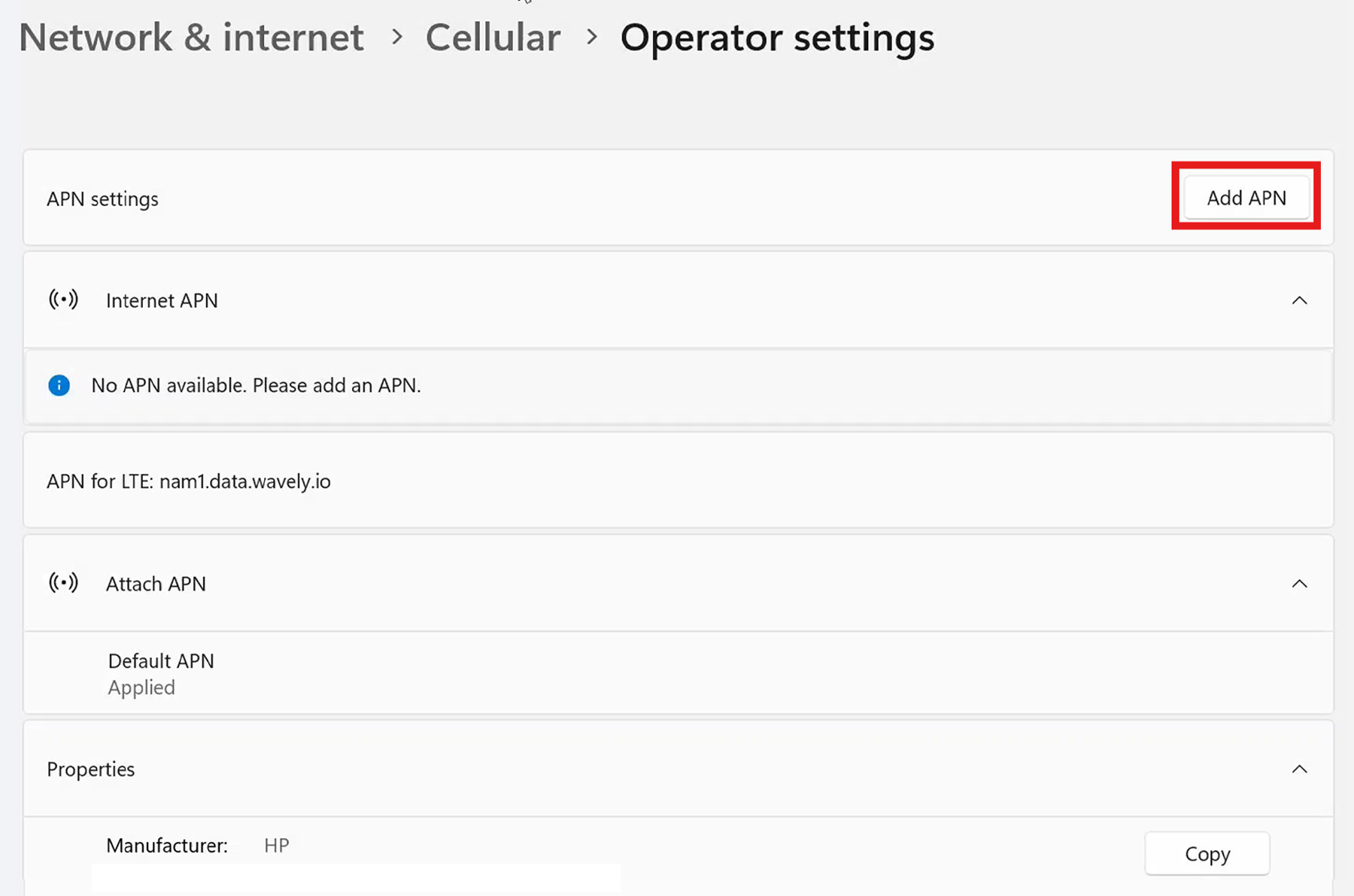
3. Click the “Add APN” button at the top right.
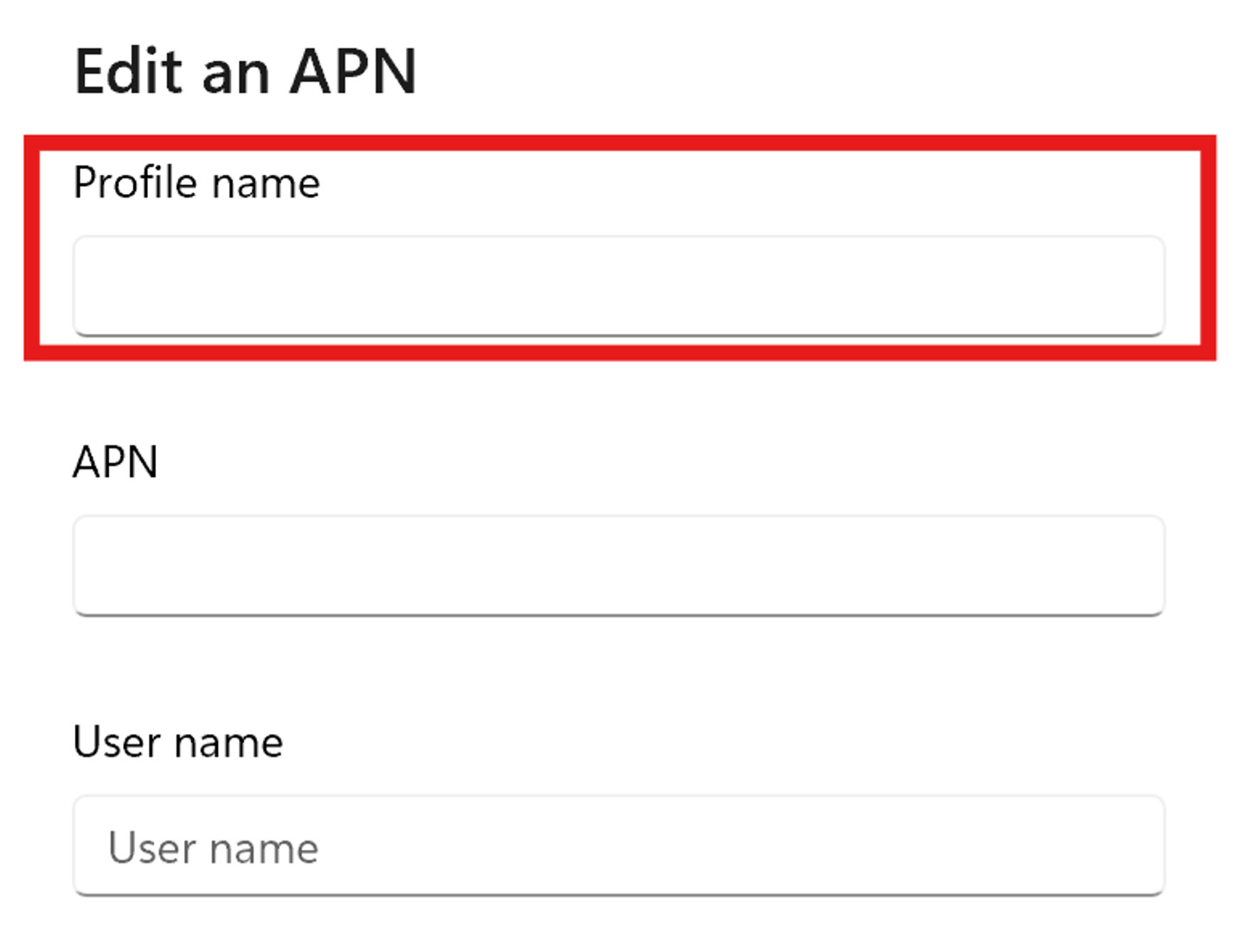
4. Type “HP Go” in the “Profile Name” box.
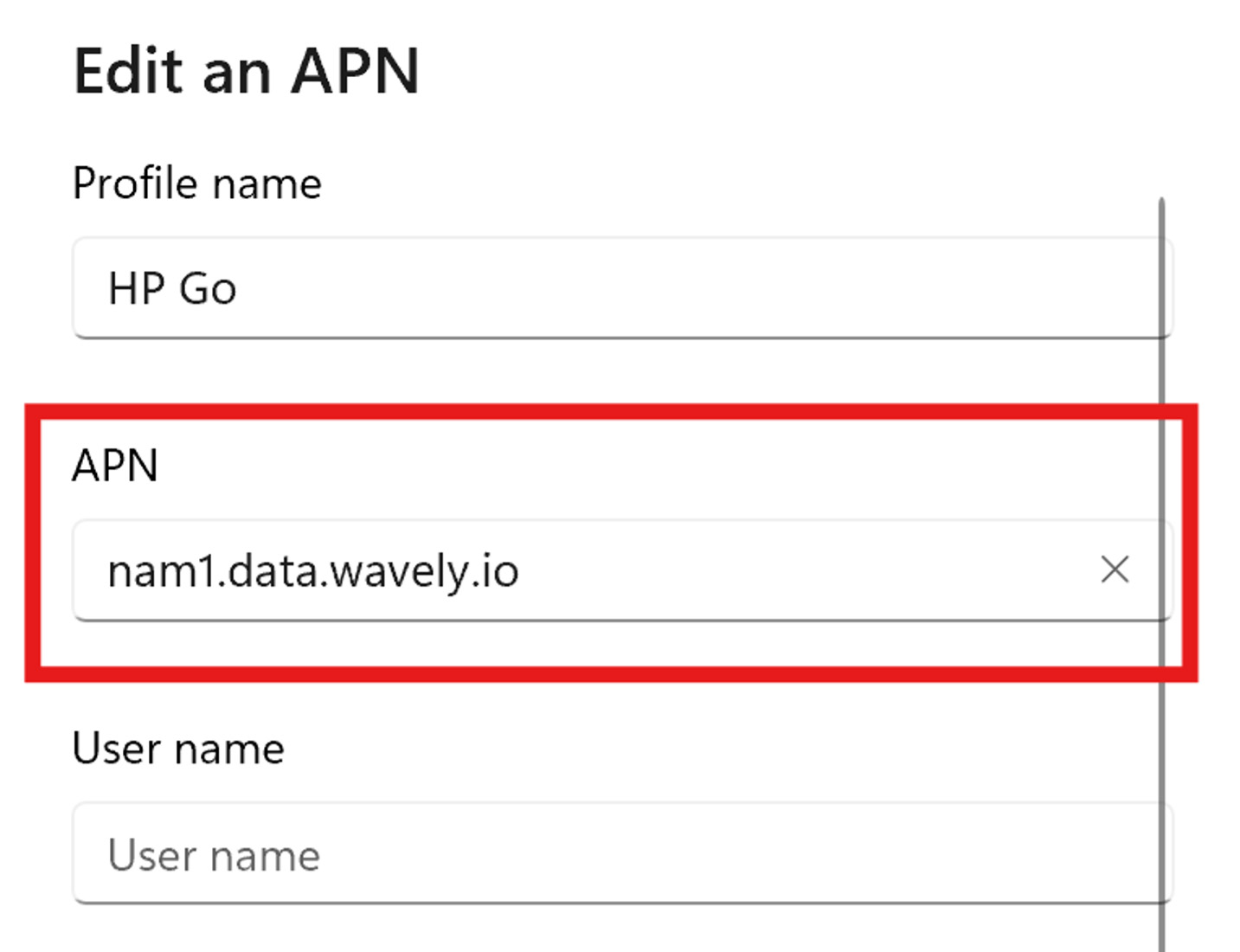
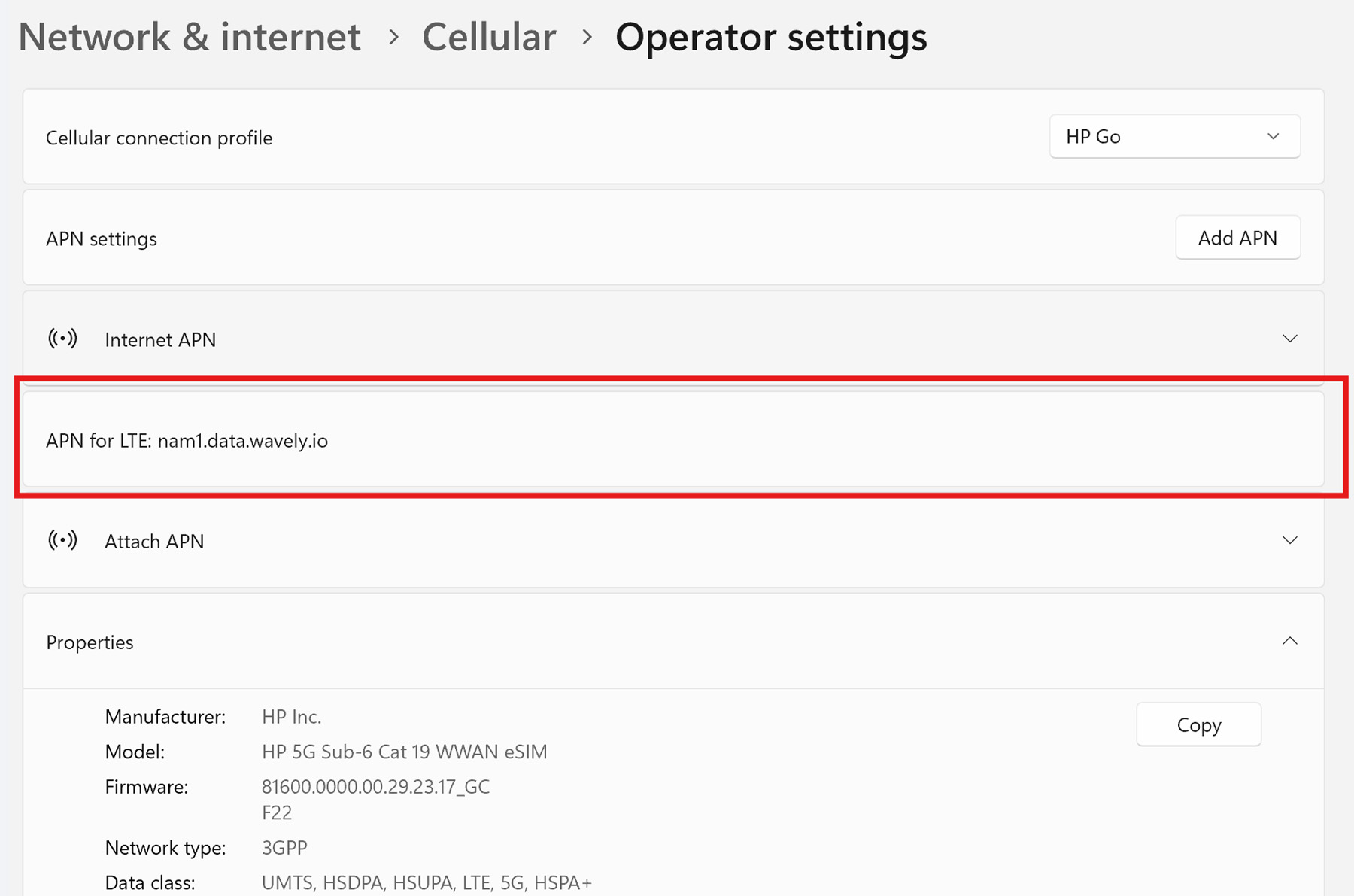
5. Type “nam1.data.wavely.io” into the “APN” box. Note, this APN is for US customers only.
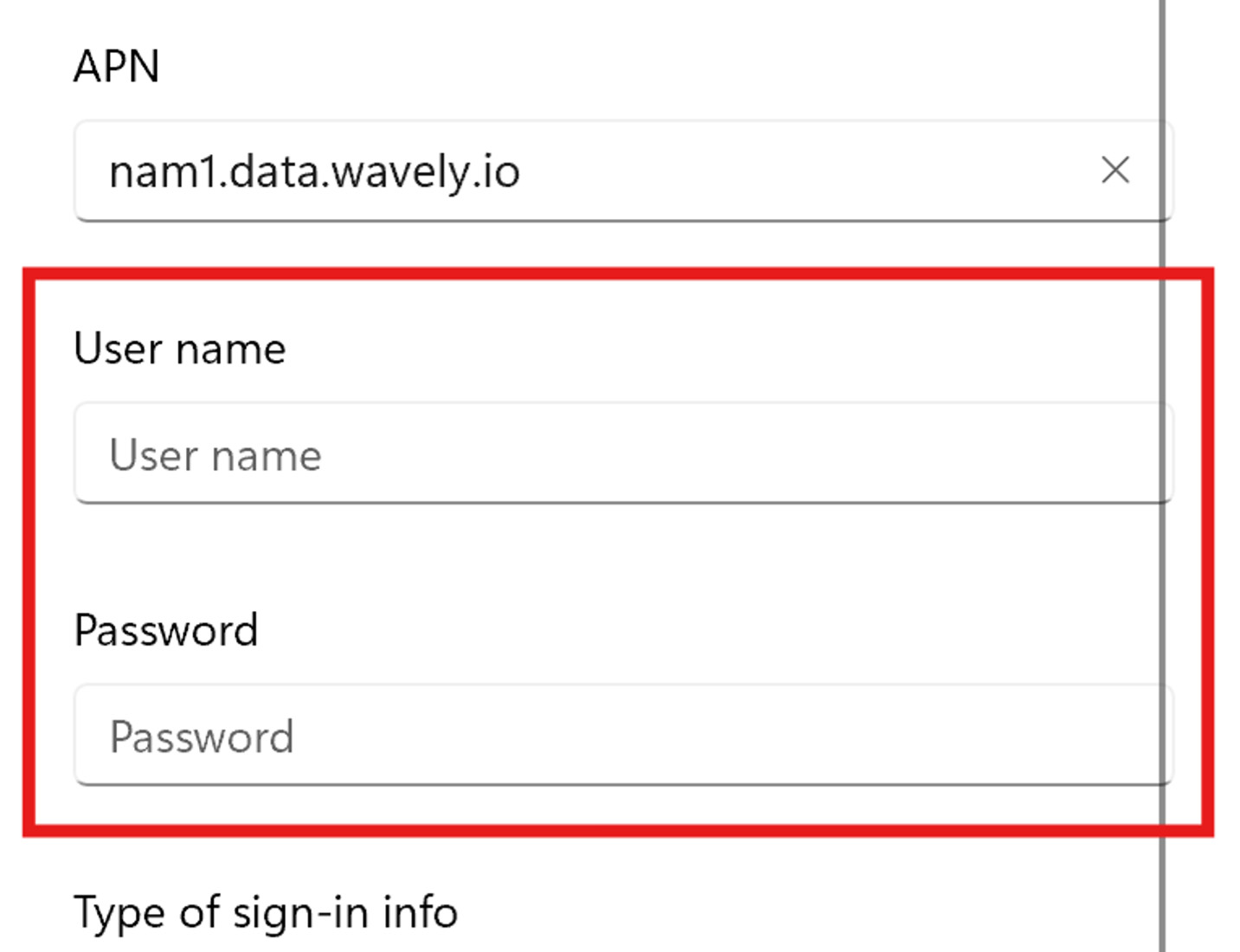
6. Leave the “User name” and “Password” boxes blank.
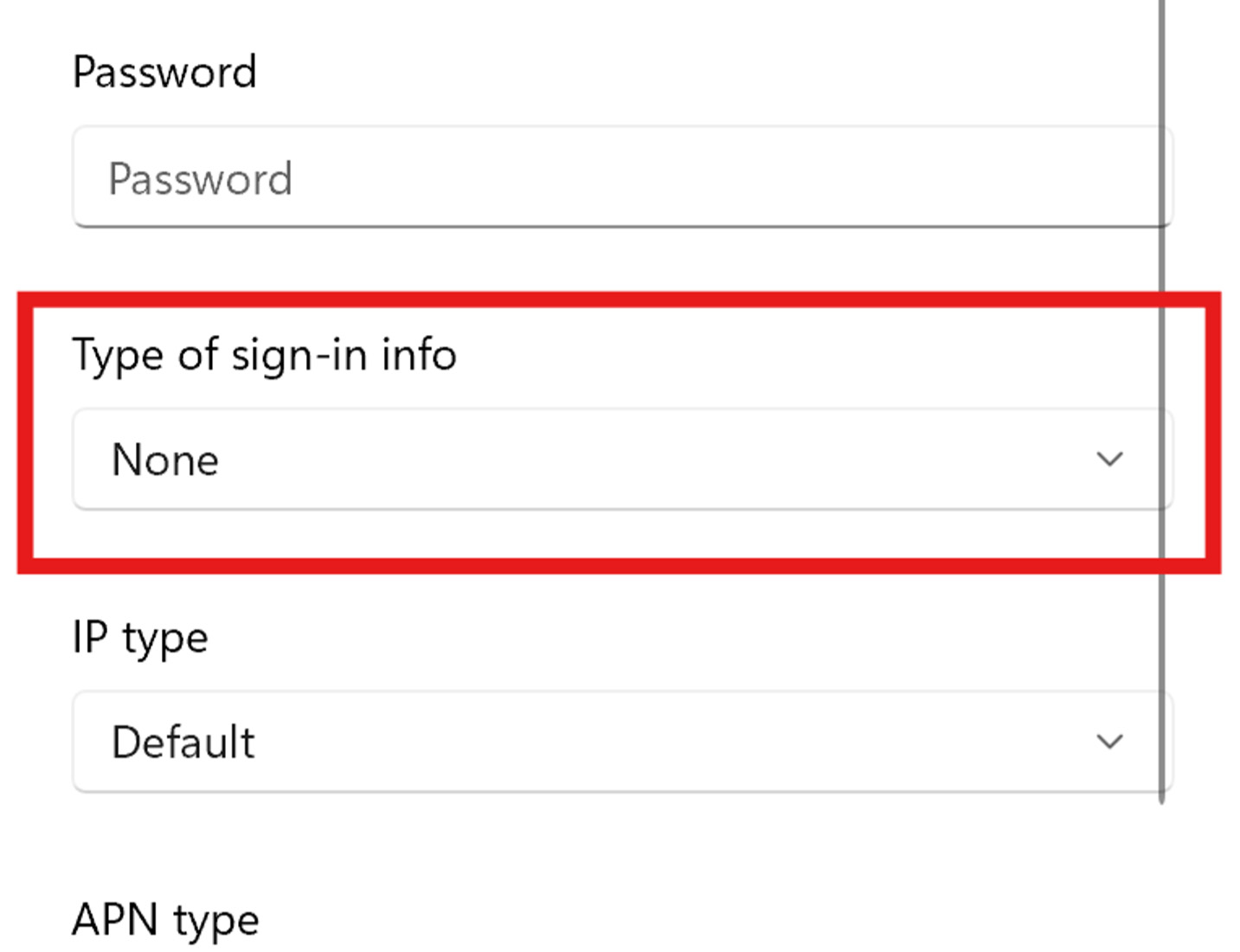
7. Keep the “Type of sign-in info” as “None”.
8. Keep the “IP type” as “Default”.
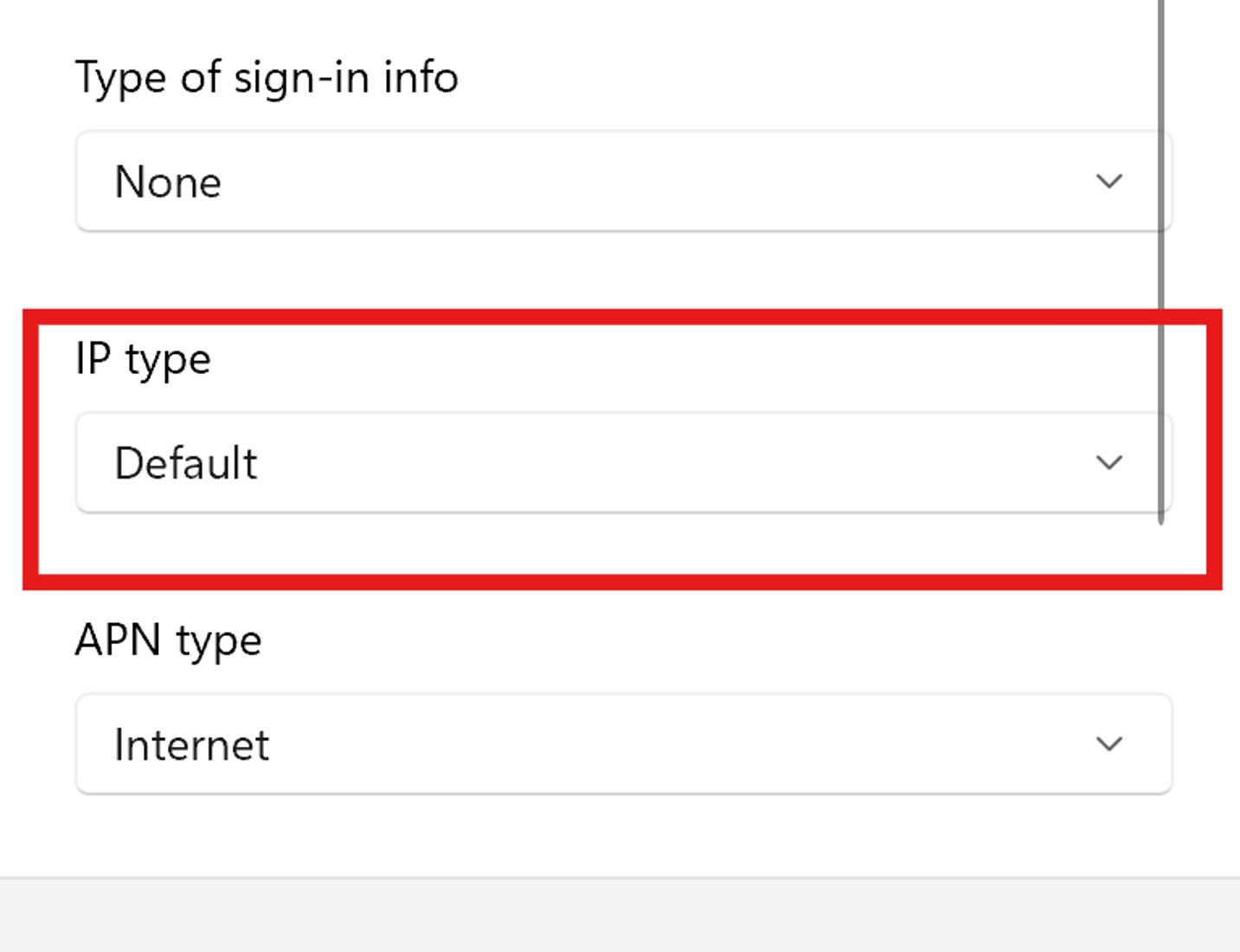
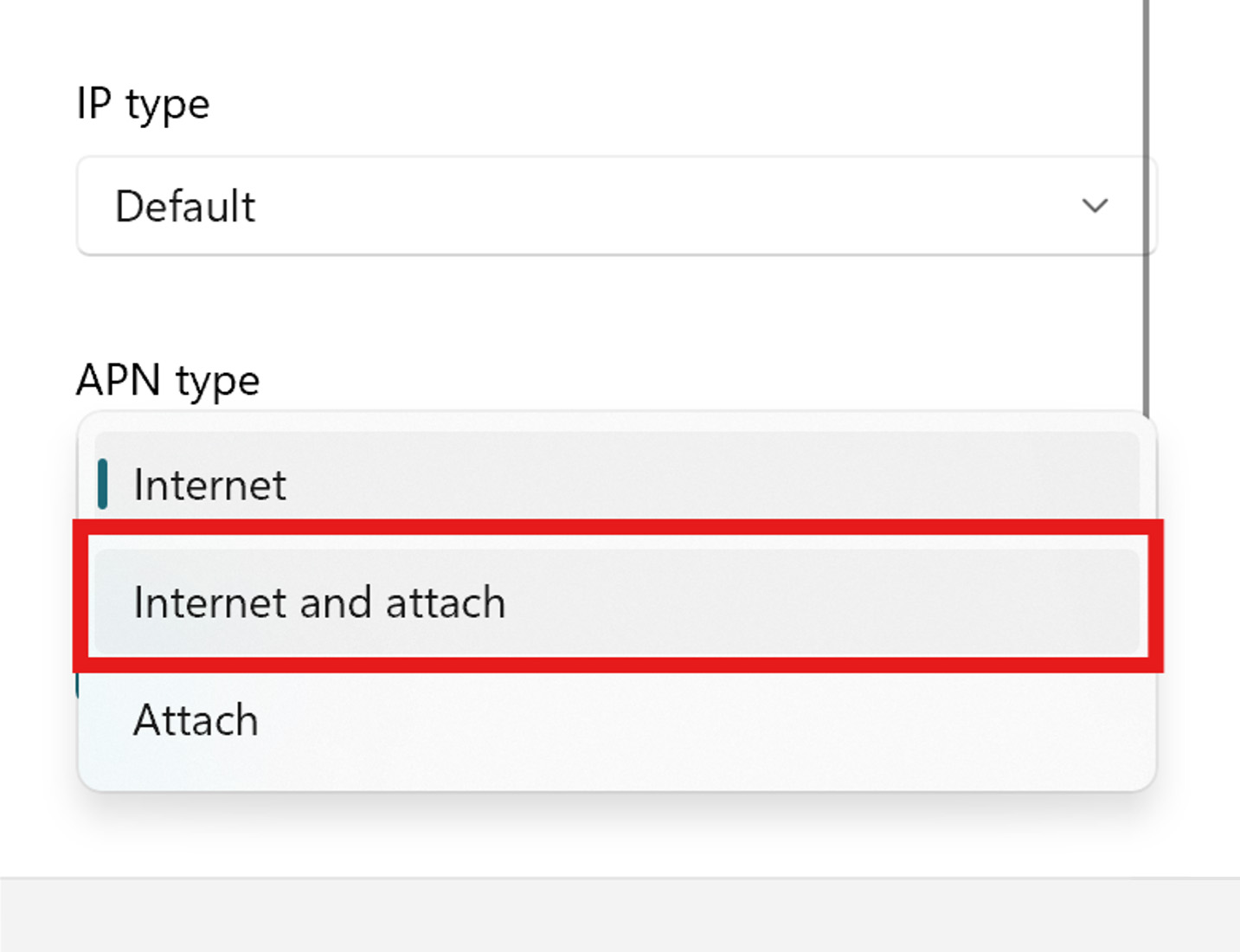
9. Select “Internet and attach” from the “APN type” dropdown menu.
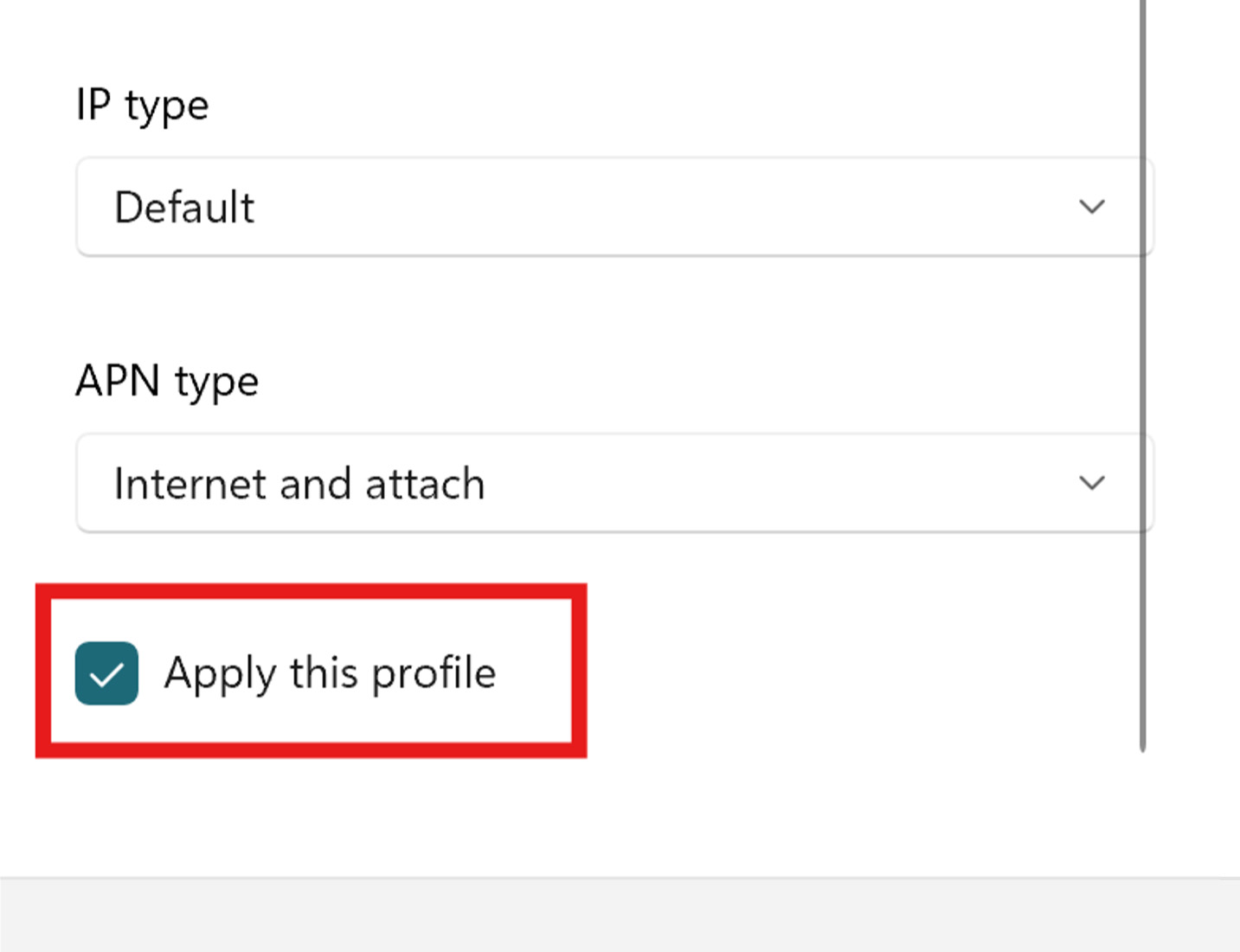
10. Ensure the “Apply this profile” box is checked.
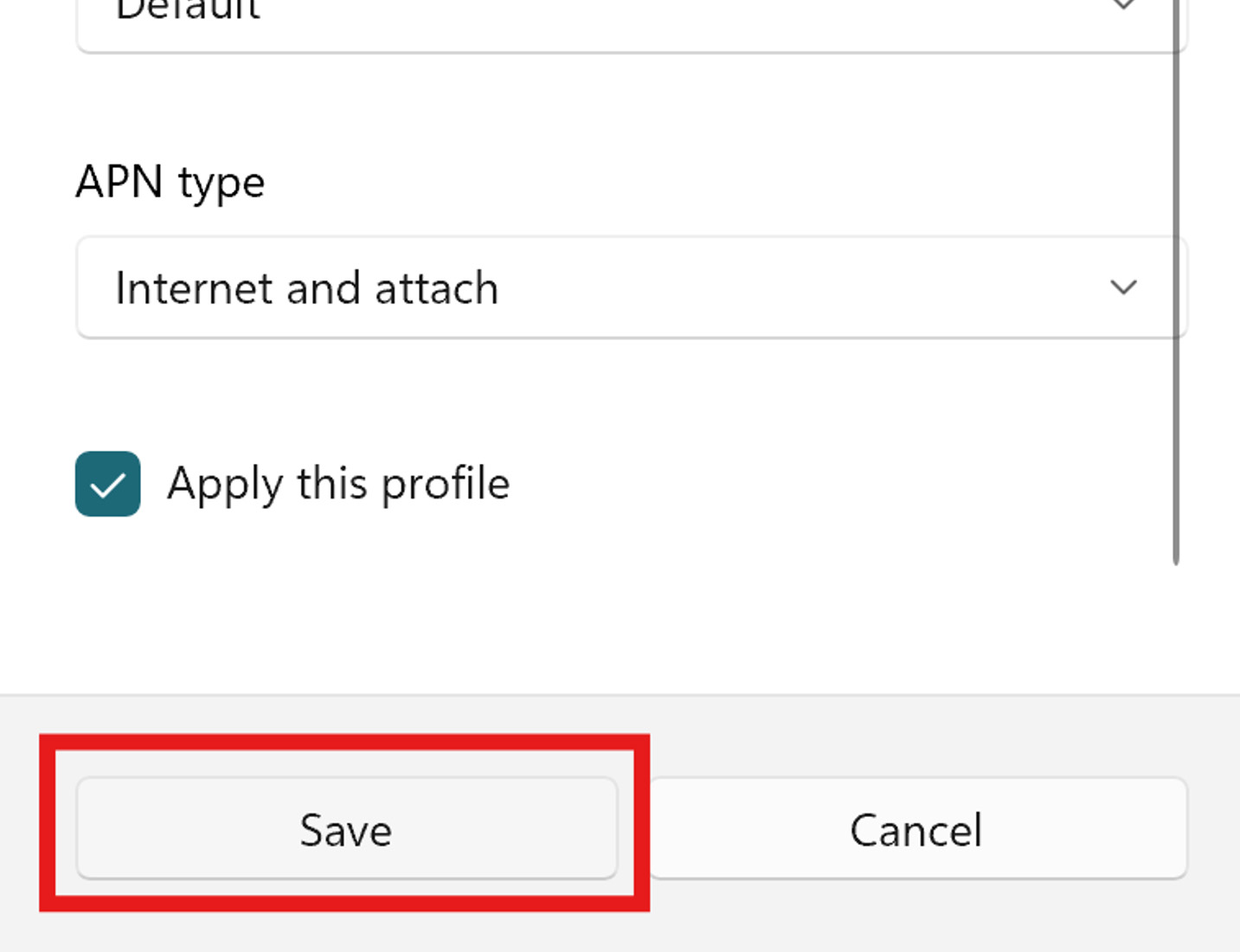
11. Click the “Save” button.
12. The APN you added is shown below
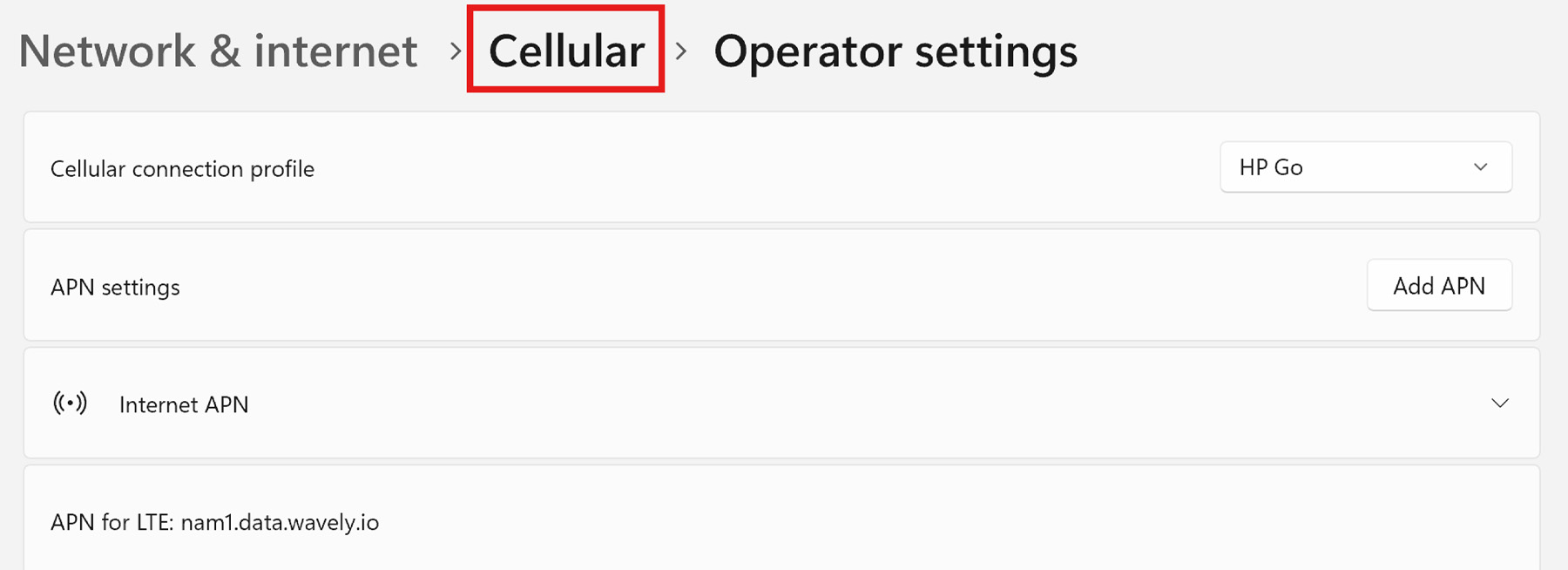
13. Navigate back to “Cellular” at the top.
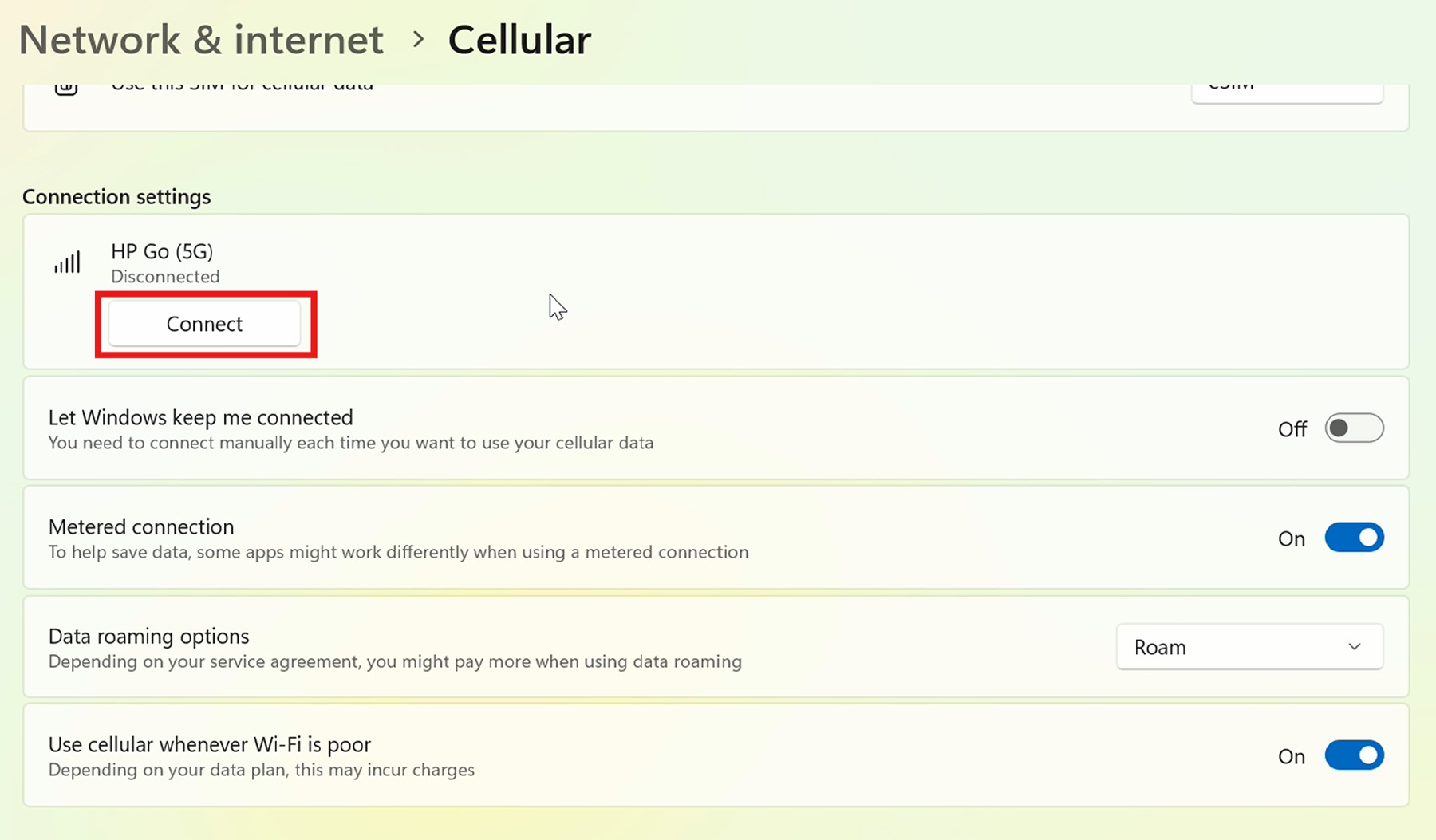
14. Click the “Connect” button under the HP Go network.
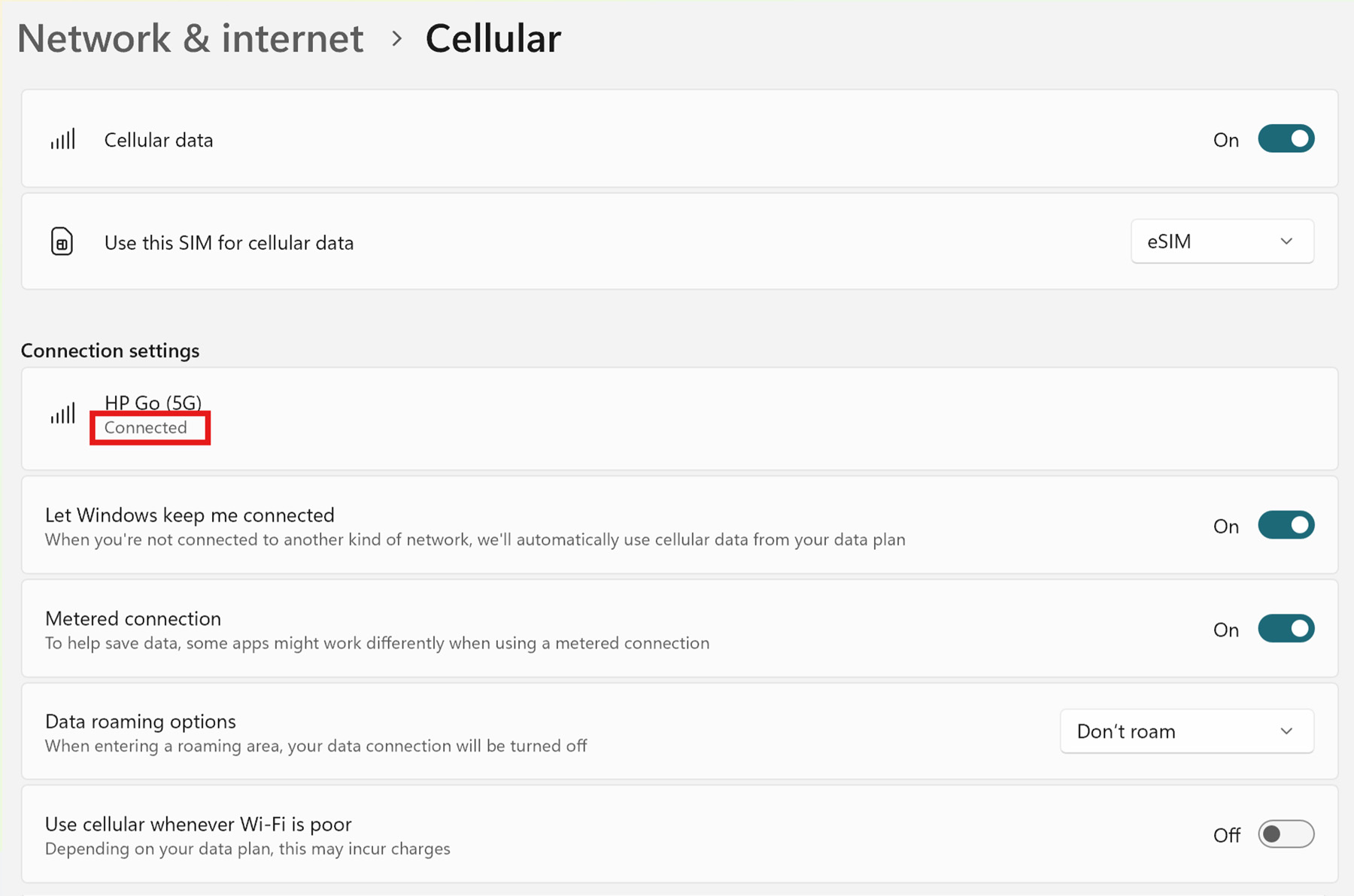
15. After a few seconds, you should be connected to the HP Go network.
If you require further assistance, please contact HP Support.