
Available with Premier and Premier Plus Plans
The Access Control List (ACL) feature allows you to control how your SIM cards connect to the internet. With ACLs, you can:
- Allow specific domains, IP addresses, or predefined services
- Block access to unwanted destinations
- Apply smart throttling to control bandwidth usage for any traffic that isn’t explicitly allowed
How it works
Use ACLs to fine-tune connectivity, ensure security, and optimize bandwidth consumption for your SIM cards.
Step-by-Step Instructions
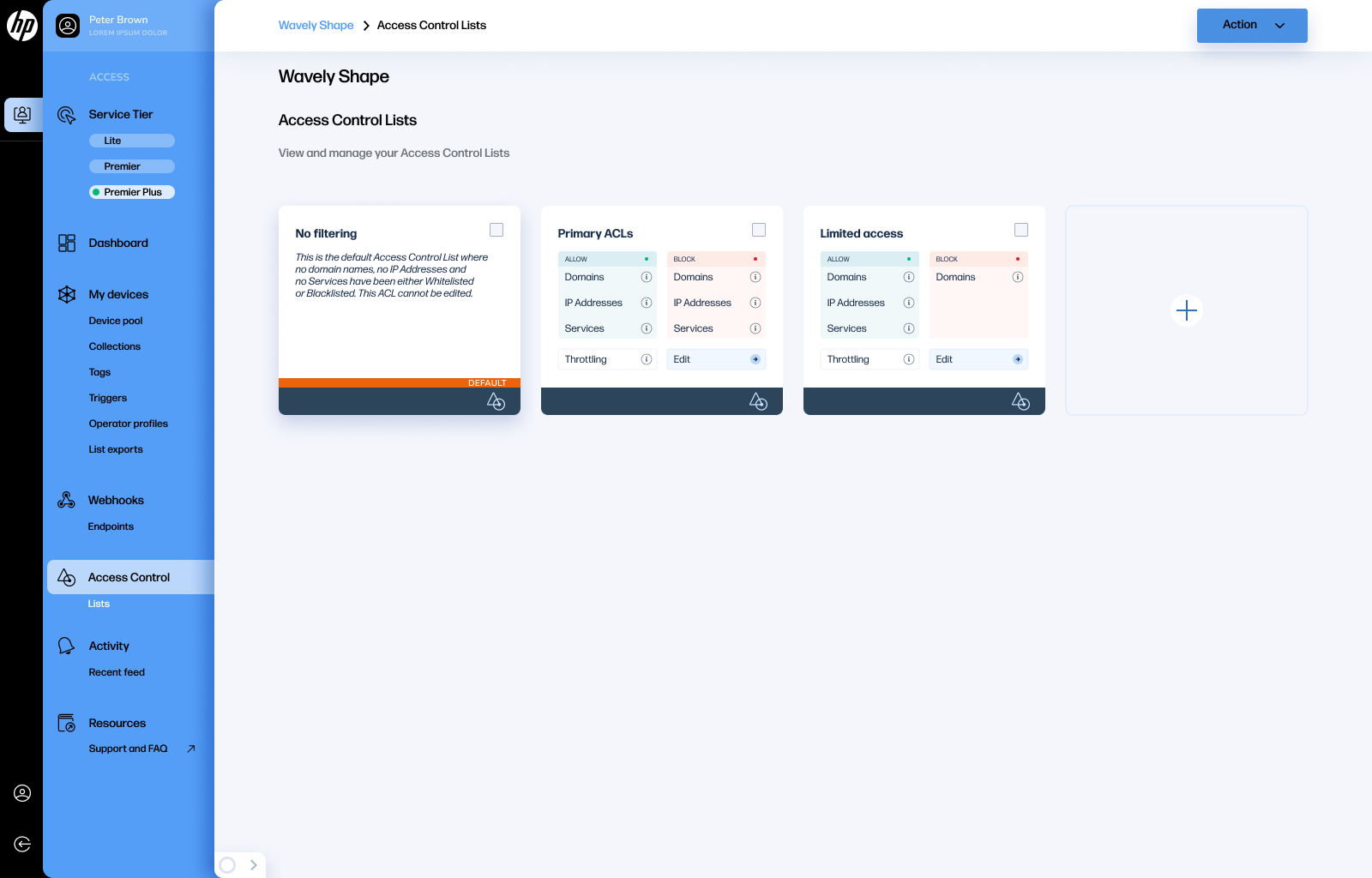
Step 1: Access the ACL Settings
- From the side menu, click on Access Control, then select Lists.
Step 2: Create a New ACL
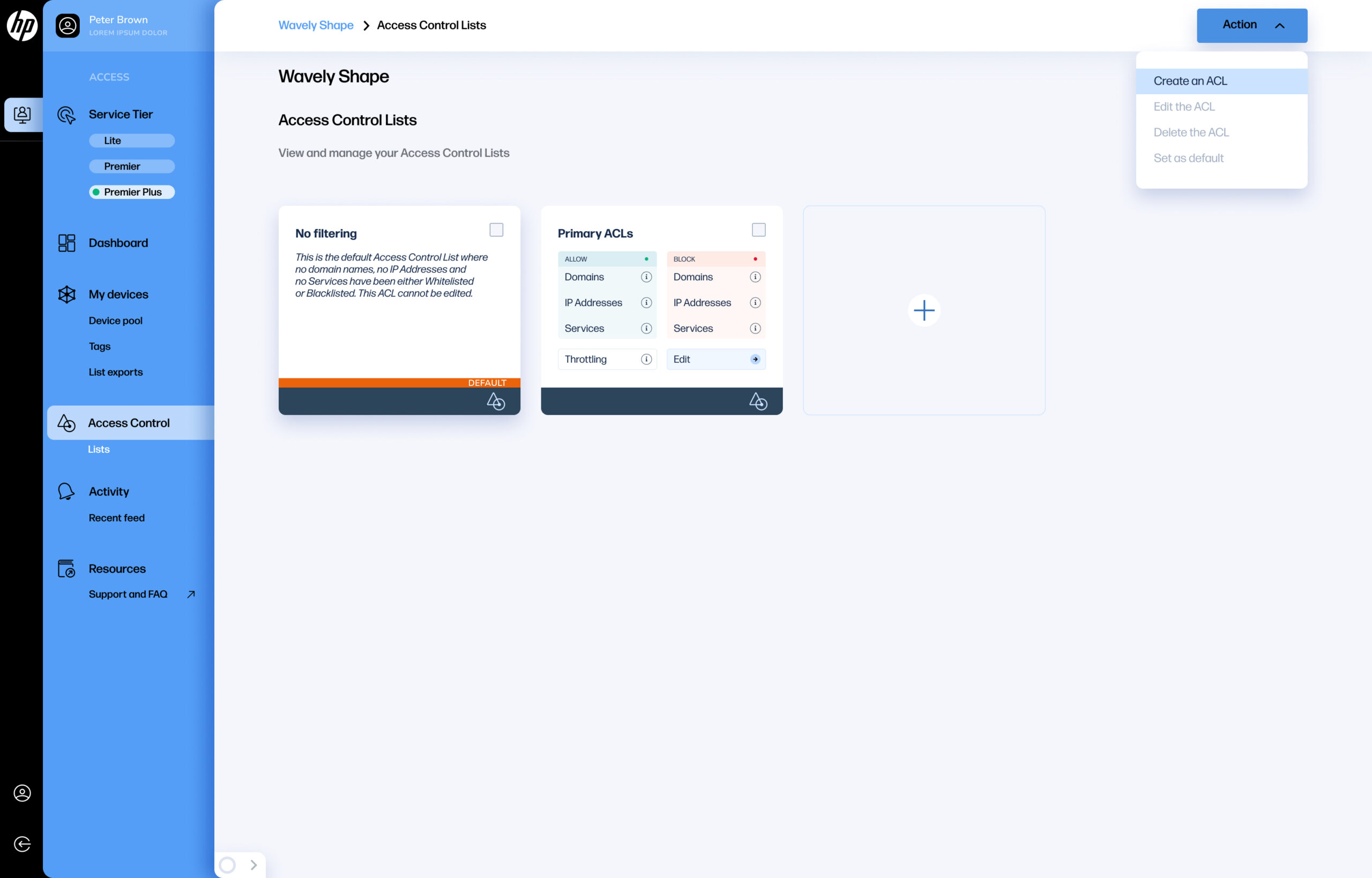
- Click the action menu.
- Select Create an ACL.
Step 3: Define Allowed Communication
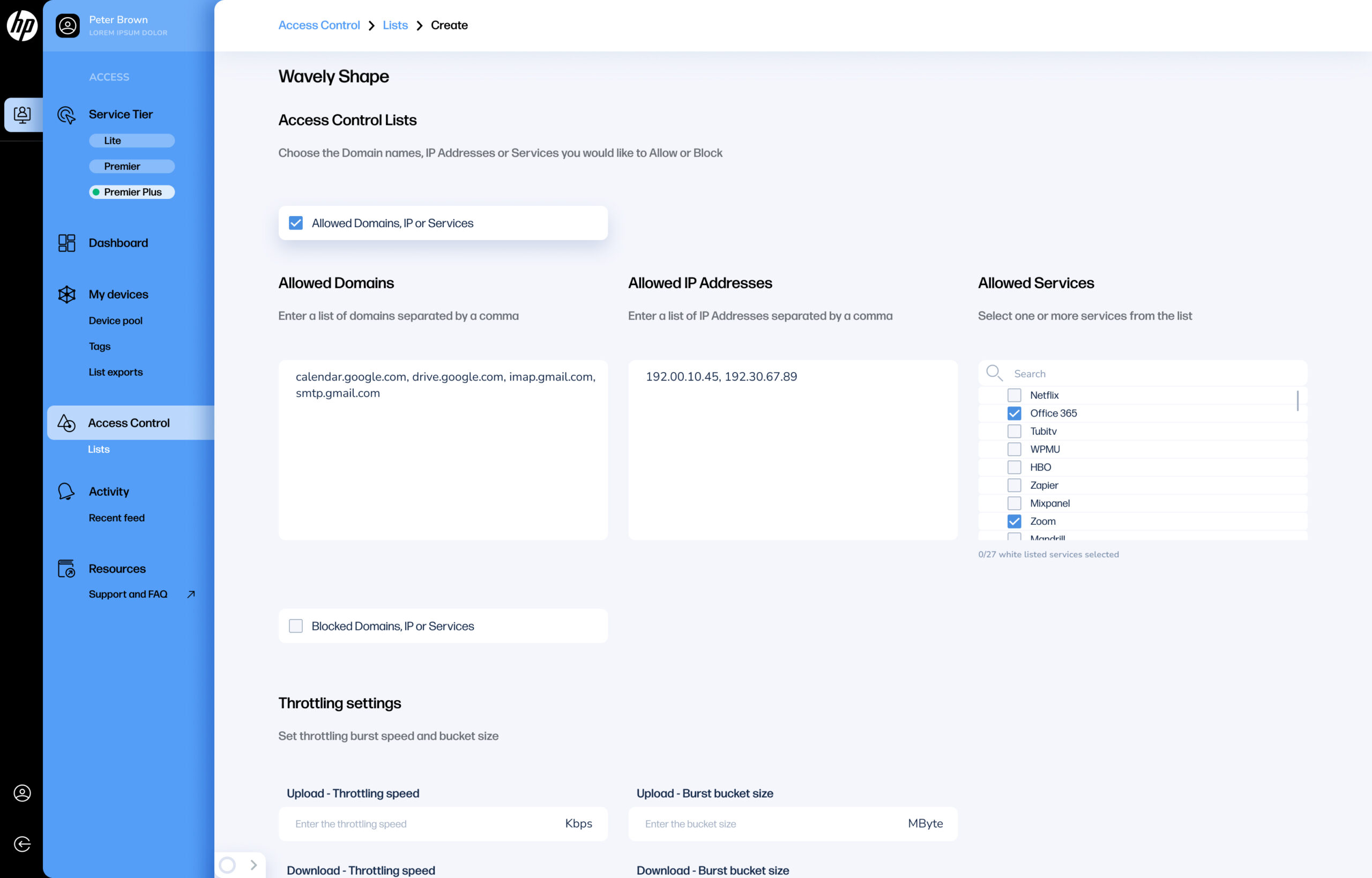
- On the creation screen, click on "Allowed Domains, IP or Services" if you want to only allow communication to specific entities.
- Enter the allowed domains, IP addresses, or predefined services in the text fields.
- Separate entries with commas.
Step 4: Define Blocked Communication
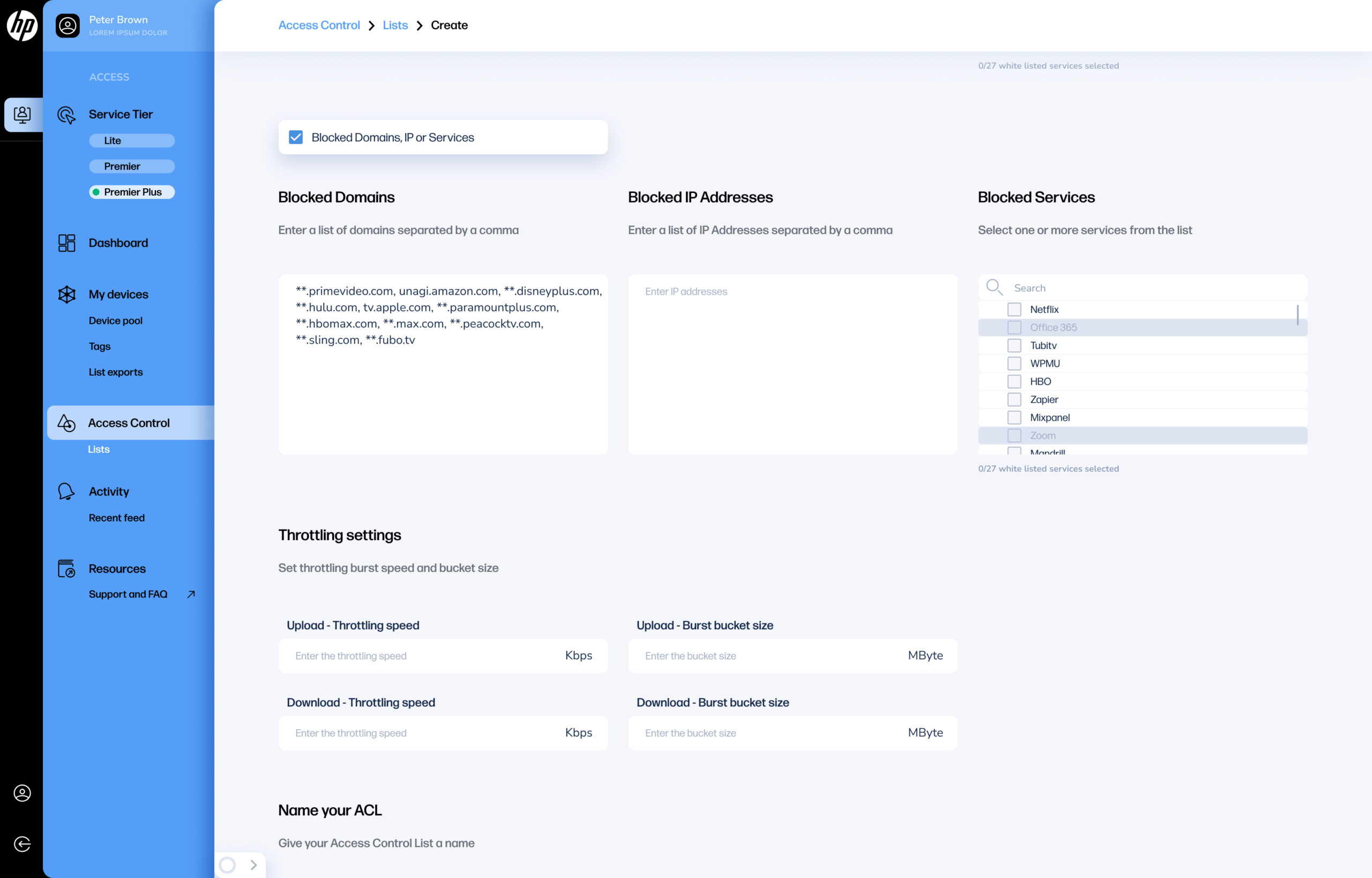
If you prefer to block specific traffic, click on "Blocked Domains, IP or Services".
- Enter the domains, IPs, or services to be blocked in the appropriate fields.
Step 5: Configure Smart Throttling
Smart throttling plays a critical role in how Access Control Lists (ACLs) function.
- Enable smart throttling by entering the following parameters:
- Upload Speed (in Kbps)
- Download Speed (in Kbps)
- Burst Bucket Size (in MByte)
How Smart Throttling Works:
- Applies to traffic not included in the allowed list.
- The burst bucket provides a temporary high-speed connection for initial data bursts.
- Once the bucket is depleted, speed is throttled to the specified limits.
- The bucket refills continuously at the throttled rate until full.
Priority Rule Evaluation (Order of Precedence):
When a packet is evaluated, the system applies rules in the following order:
- IPs resolved from Allowed URLs
- IPs resolved from Blocked URLs
- Allowed IPs
- IPs from Allowed Pre-defined Services
- IPs from Blocked Pre-defined Services
- Blocked IPs
If no match is found, smart throttling is applied.
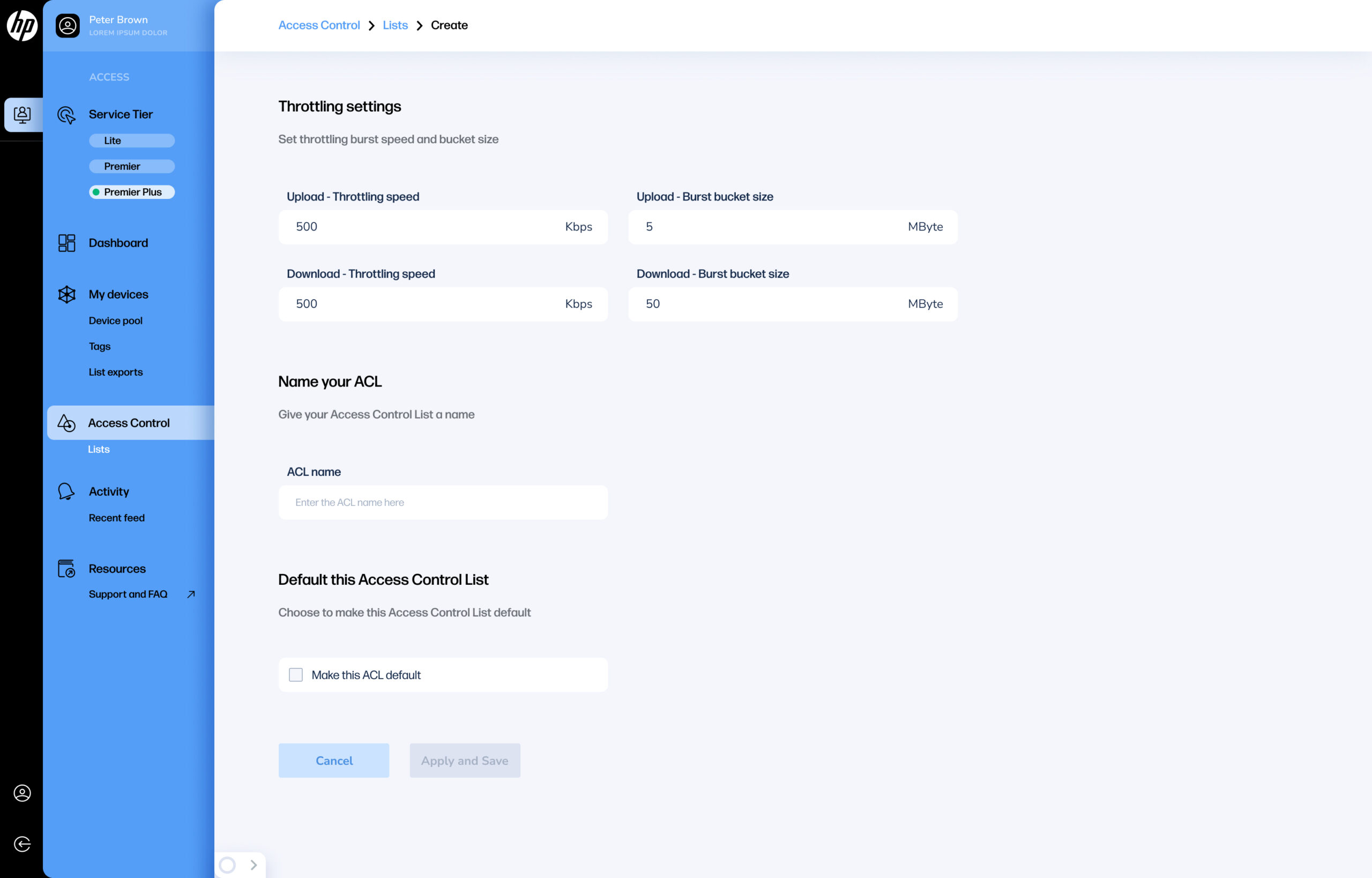
Step 6: Name the ACL
- Enter a descriptive name for your Access Control List.
Step 7: Set ACL as Default (Optional)
- Choose whether this ACL should be the default for all SIM cards in your device pool list.
Step 8: Save the ACL
- Click Apply and Save to create the ACL.

Step 9: Assign the ACL to a SIM Card
Navigate to Device Pool.
Select your device.
Click on the action menu and choose Change ACL.
Select the ACL you want to assign to the selected SIM card(s).
Tips
- Always double-check domain/IP spelling to avoid incorrect blocking.
- Use smart throttling to gently limit unknown or unclassified traffic instead of hard blocking.
- Regularly review your ACLs to adapt to new service needs or threats.
Video Guide