

This page outlines the process for setting up a replacement HP Go Downloadable eSIM.
Setup Instructions
A downloadable eSIM profile should populate in your HP Go Management console. If you requested a replacement downloadable eSIM from HP Support and it has not populated in your dashboard after 5-7 business days, please contact HP Support again. You can print the QR code or display it using another device such as your mobile phone. Use the webcam of the device on which you wish to add the downloadable eSIM profile to scan the QR code (never use a mobile phone).
To install your eSIM on Windows, please follow the steps below:
1. Activate your replacement downloadable eSIM in the HP Go Management Console.
2. Connect your PC to a Wi-Fi network as it will need to download the configured eSIM.
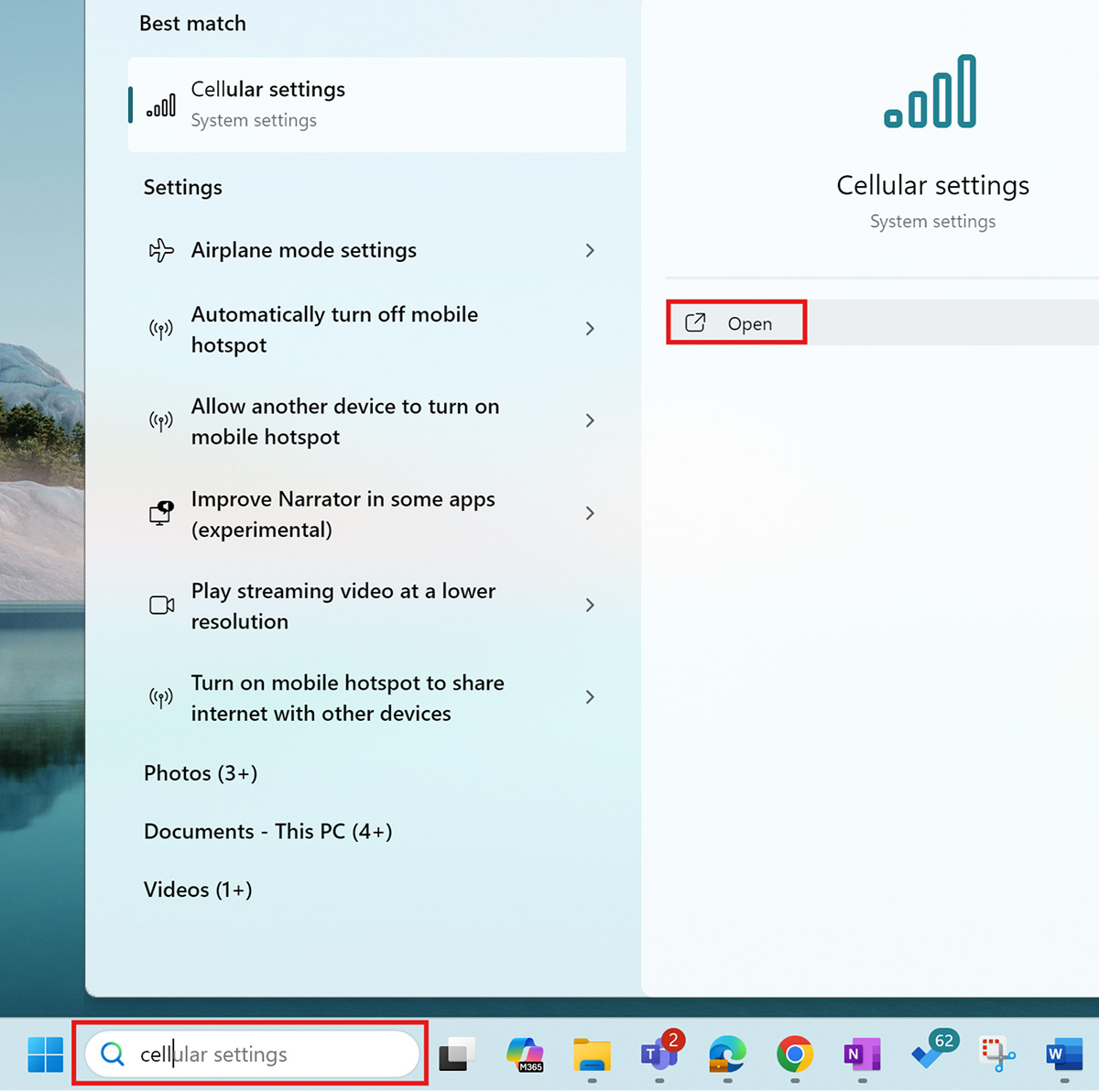
3. Search for “cell” in the Windows search bar and click the “Open” button.
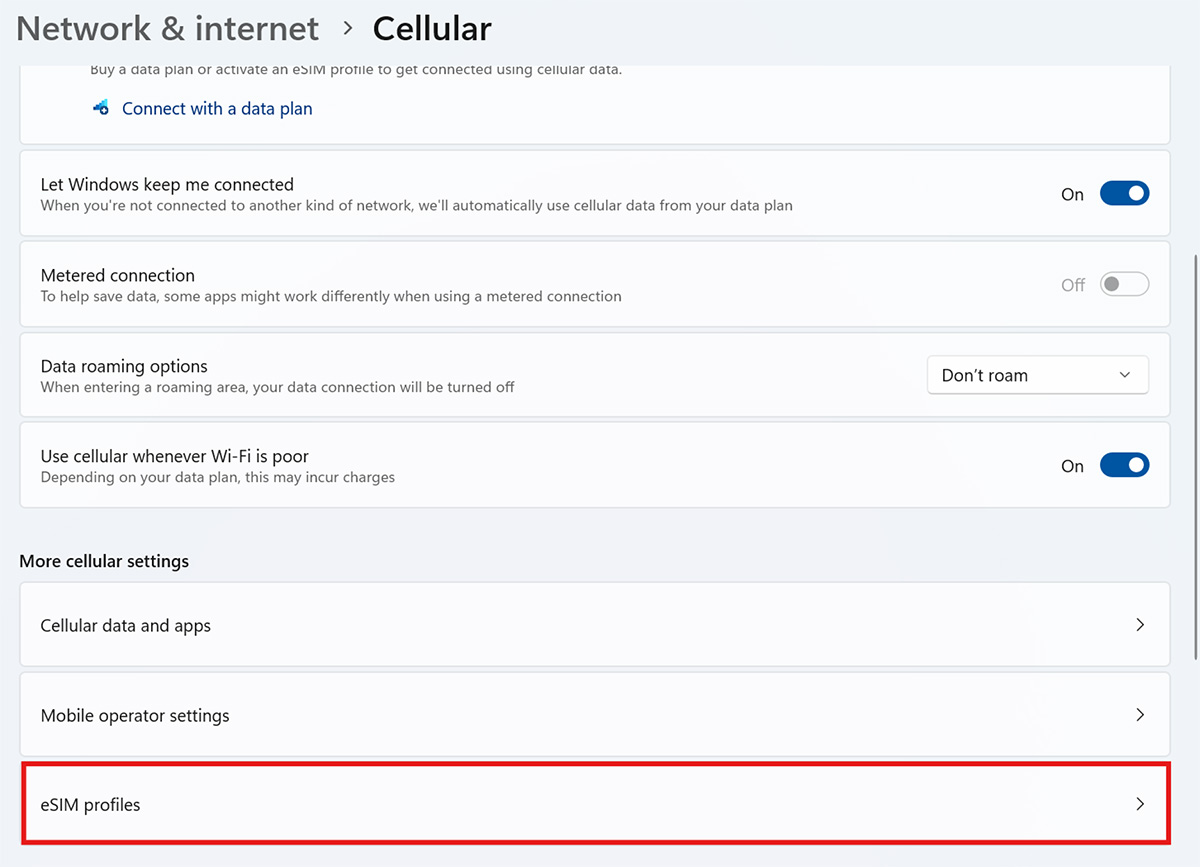
4. Click on the “eSIM profiles” section.
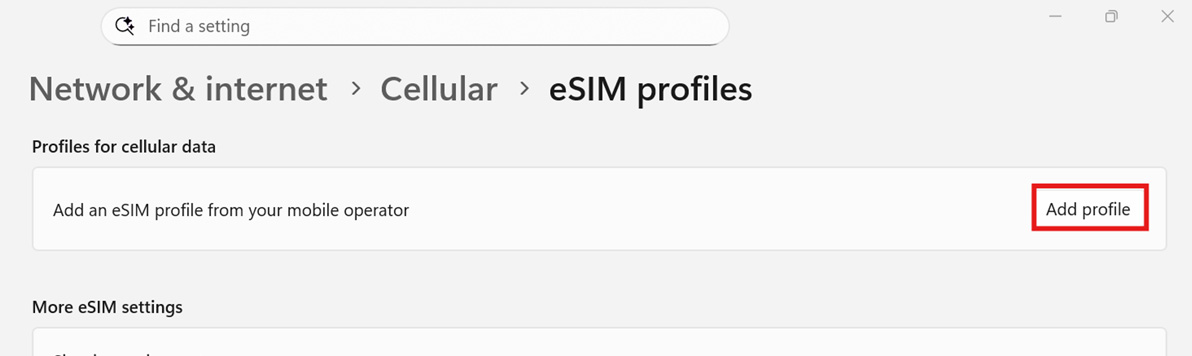
5. Click “Add profile”.
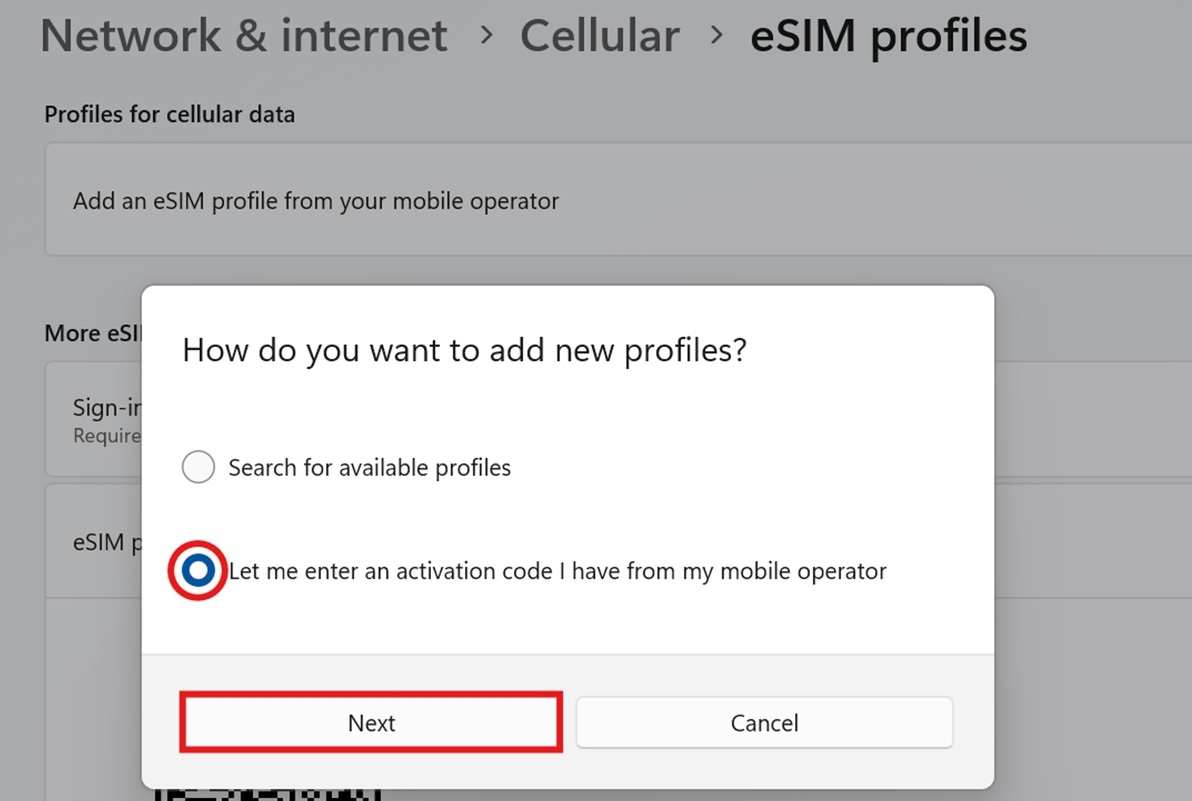
6. Select “Let me enter an activation code I have from my mobile operator” and click the “Next” button.
7. During this process you will need to use your phone or another device to show the QR code to your notebook’s web cam. You can also print the QR code. The notebook webcam will automatically scan the QR code and request your confirmation to start the eSIM profile download.
8. Click “Yes” to start the download.
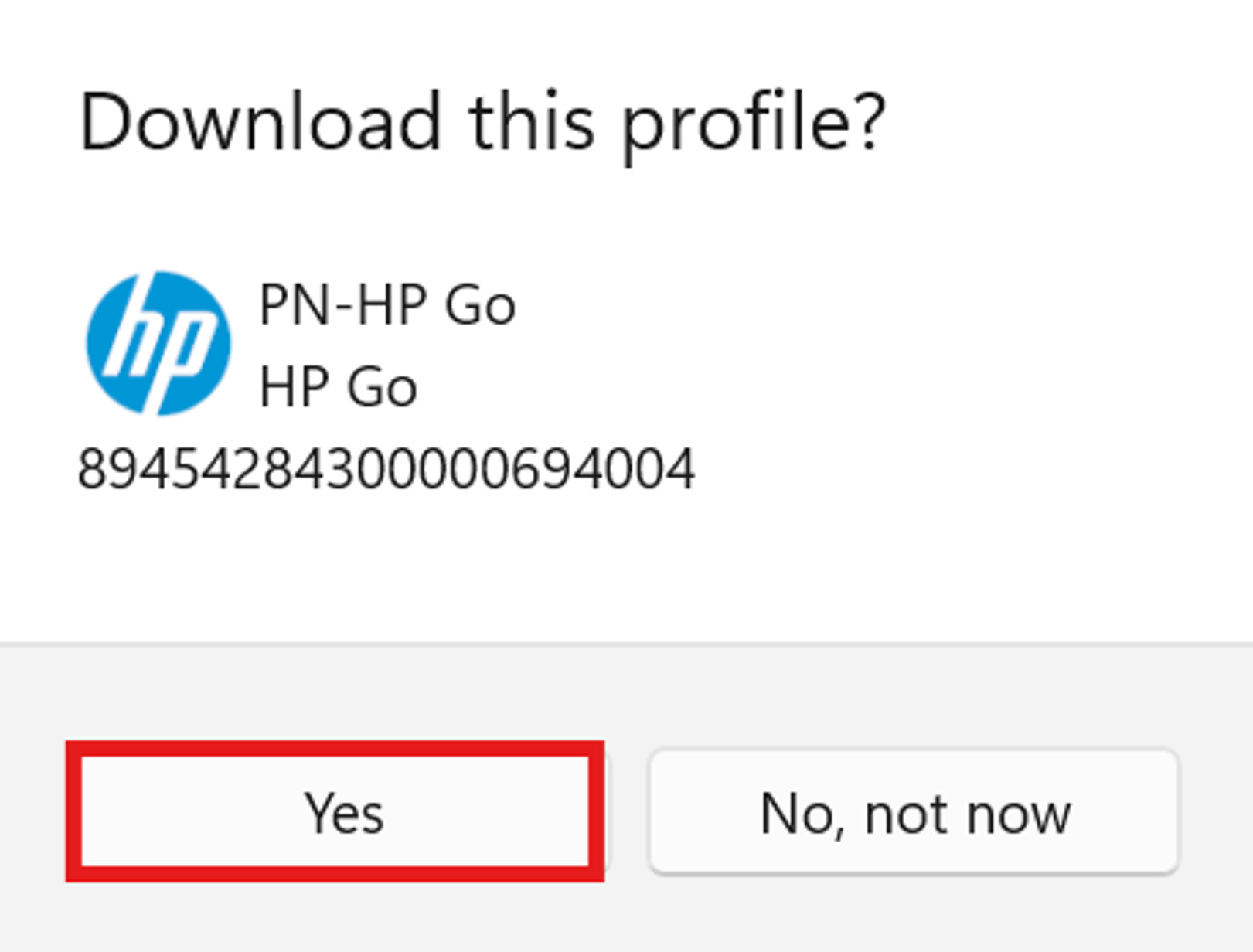
9. The profile will be downloaded and installed.
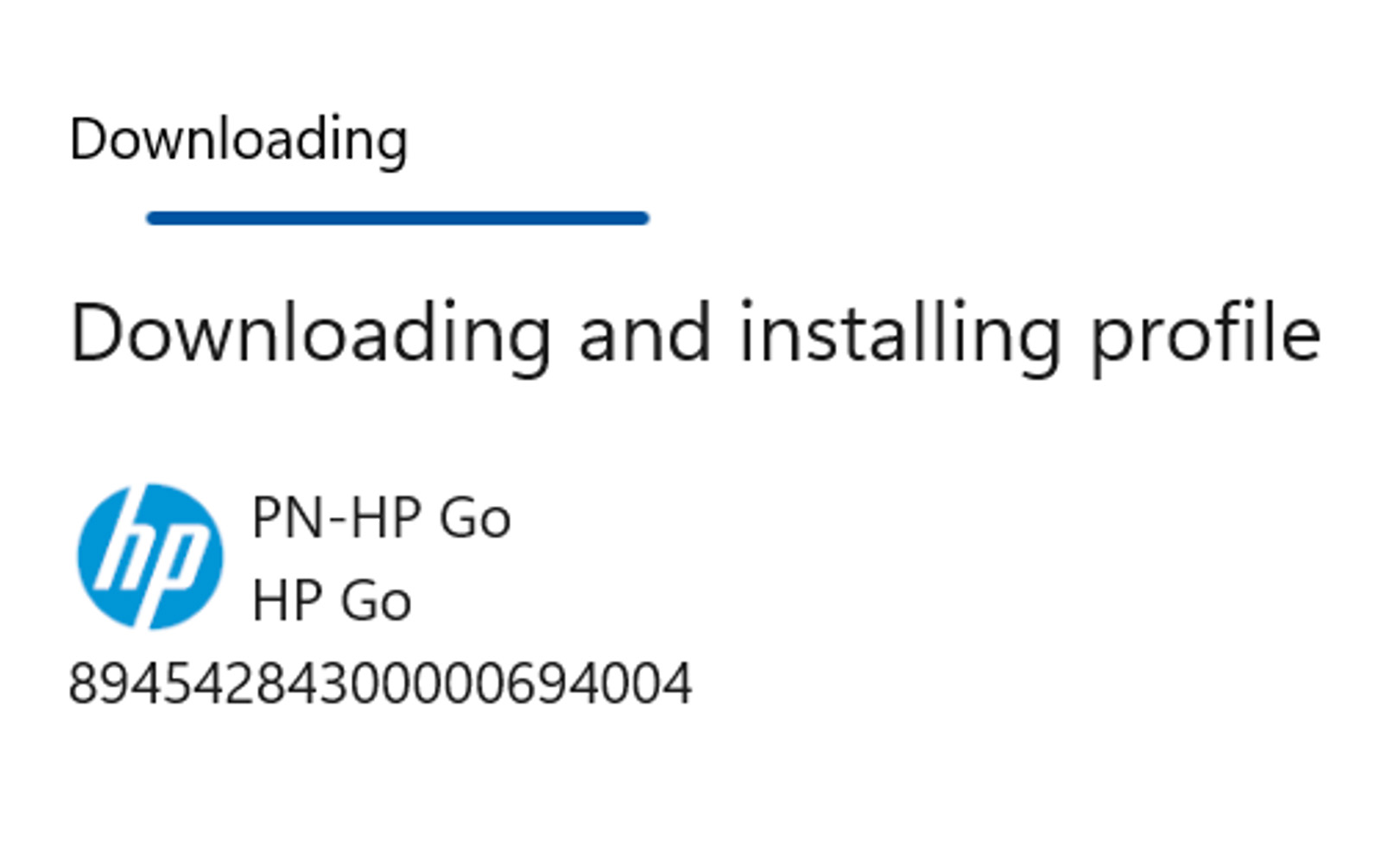
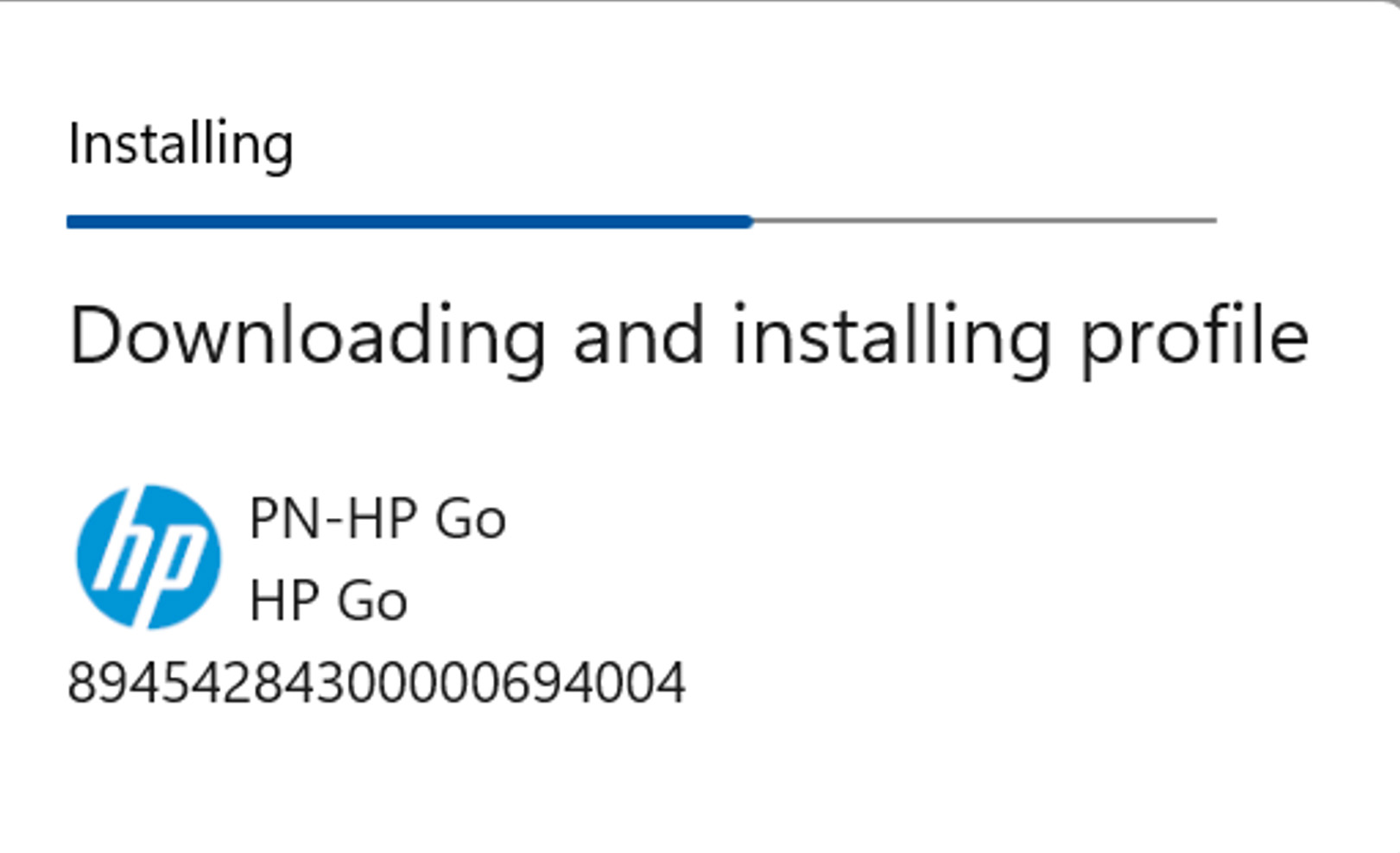
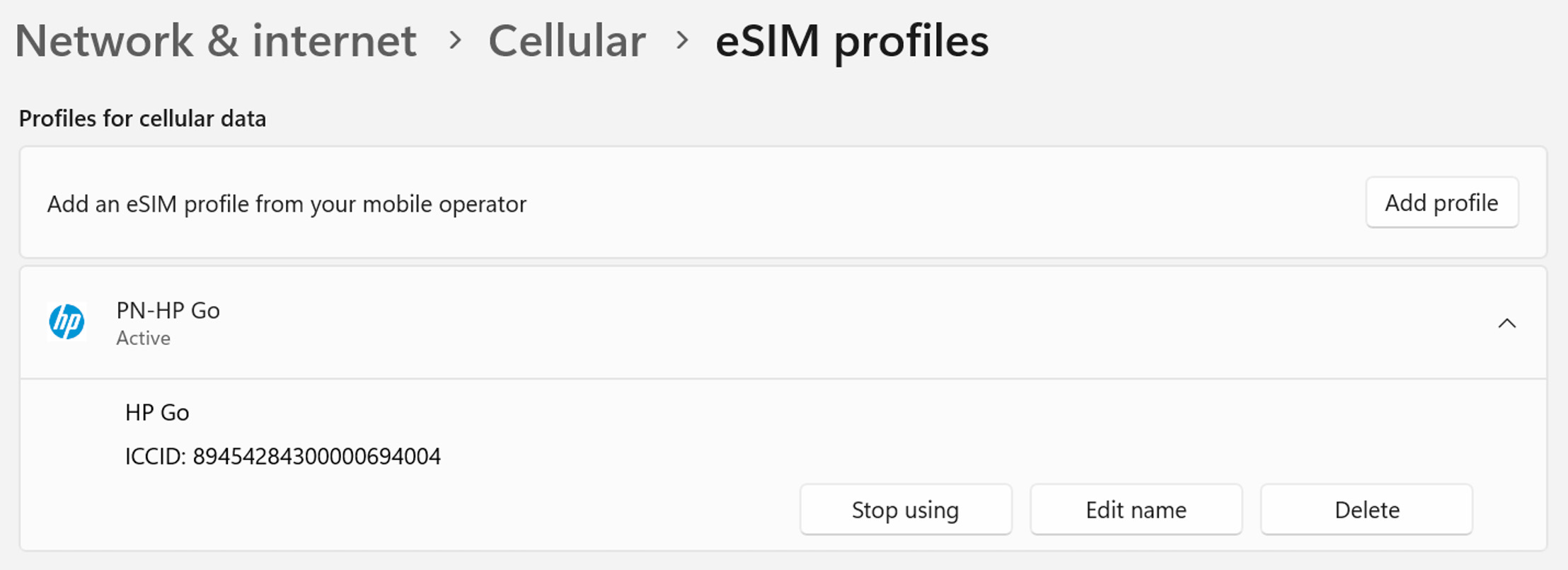
10. Your profile will be ready once the download is completed.
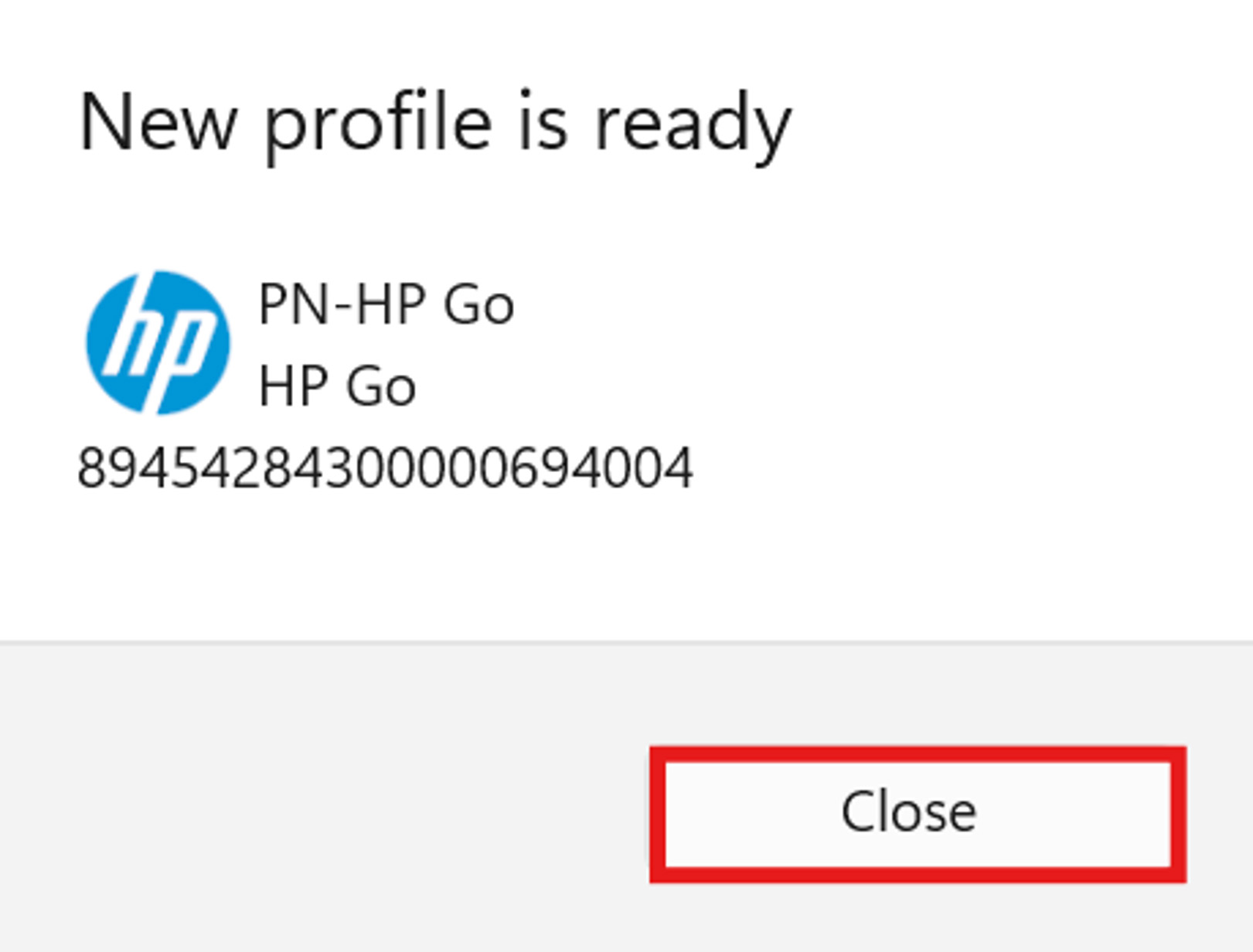
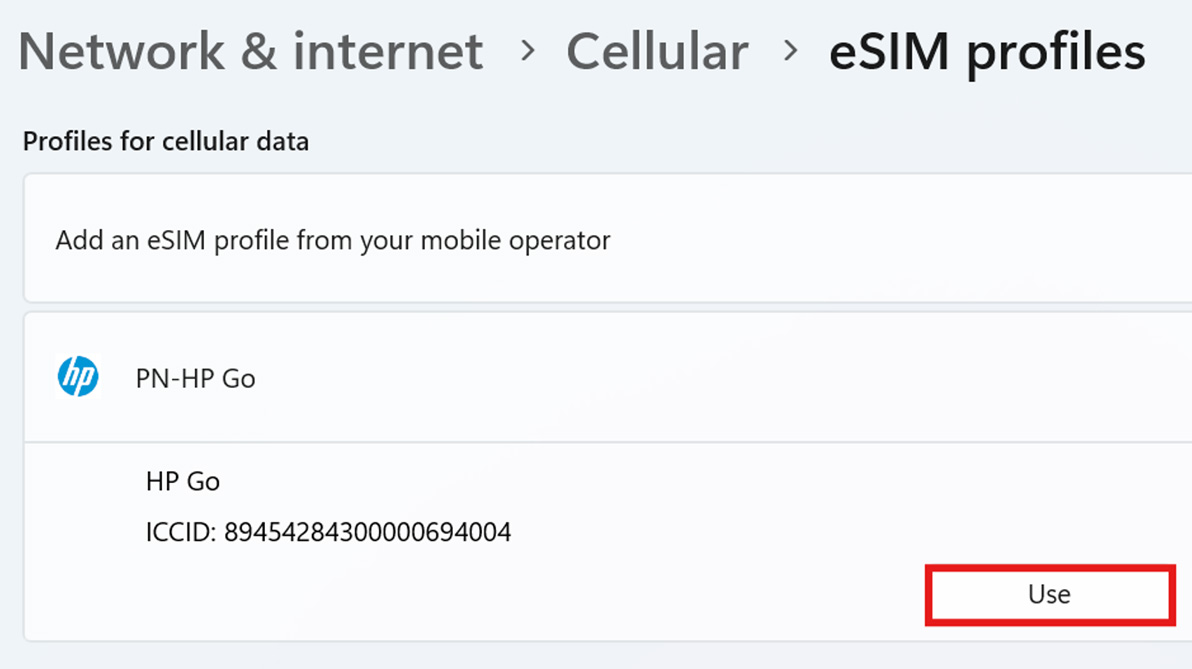
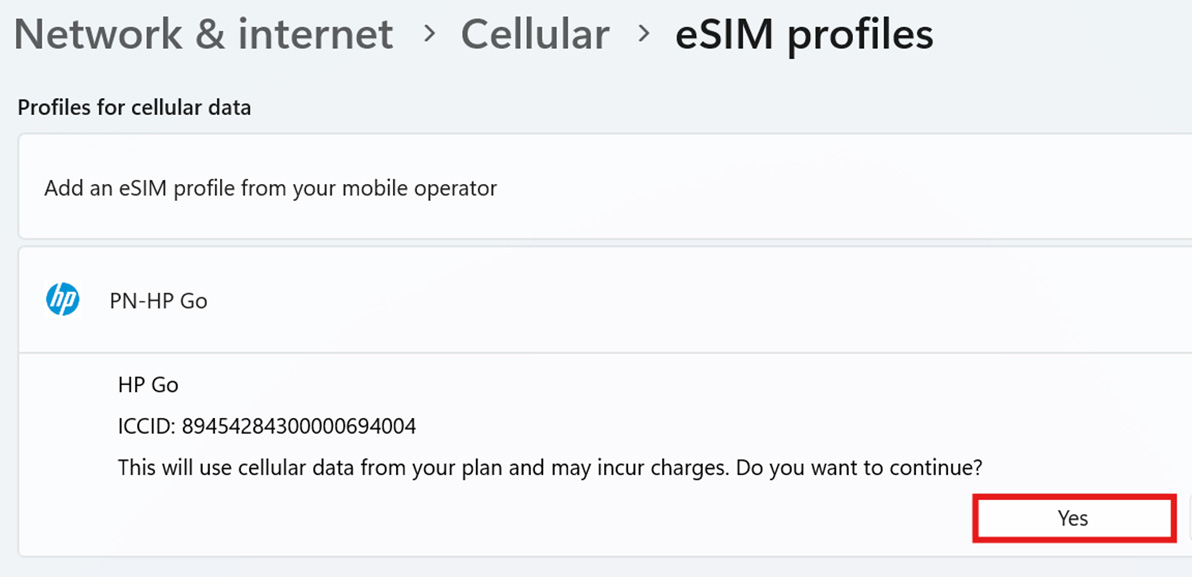
11. Click “Use” and then “Yes”.
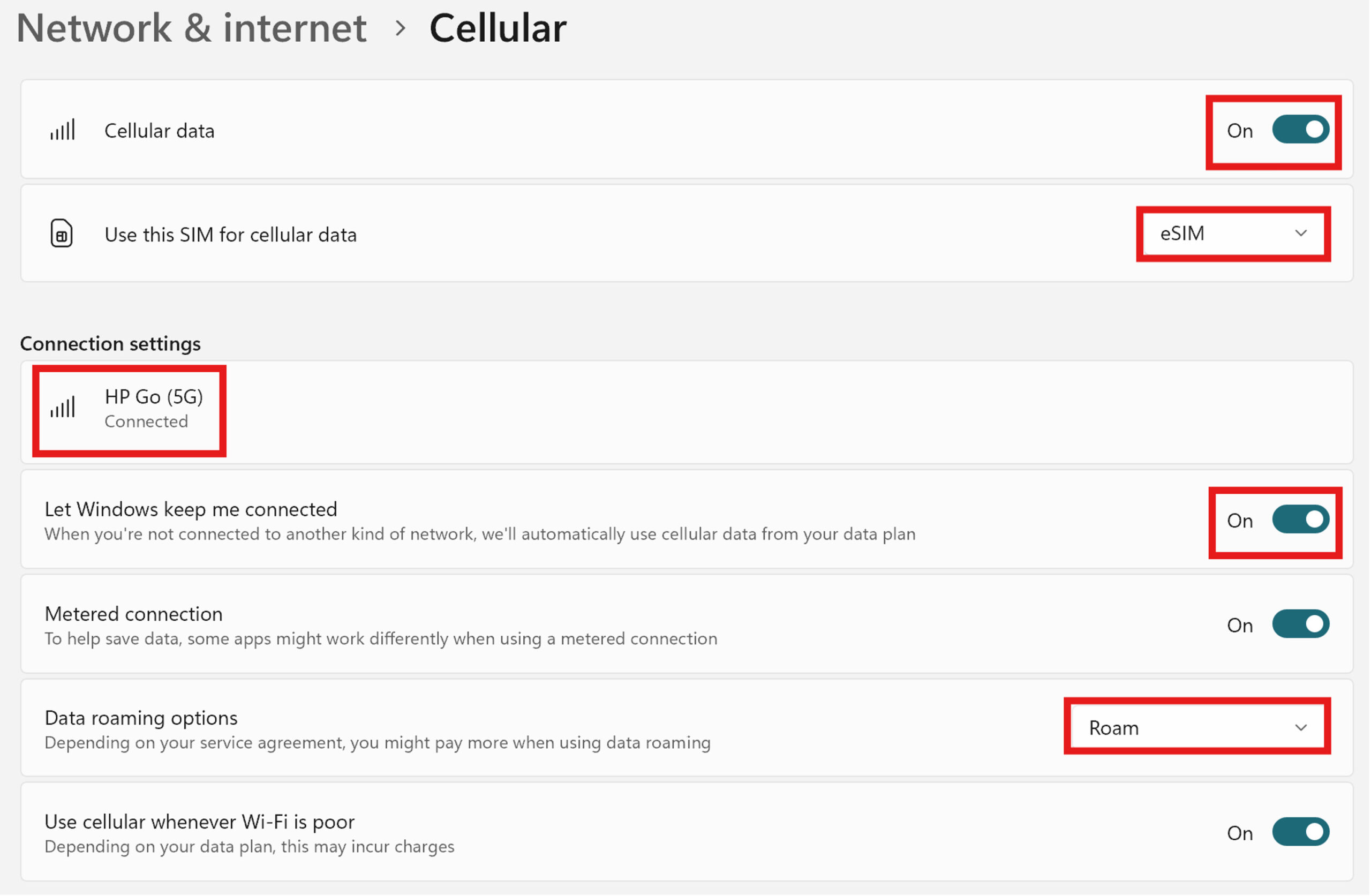
12. Ensure your cellular settings are set appropriately.
- Cellular data is “On”.
- Use this SIM for cellular data: “eSIM”.
- Connect to the HP Go network.
- Ensure “Let Windows keep me connected” is toggled to “On”.
- Enable roaming if you plan to use cellular services while traveling.
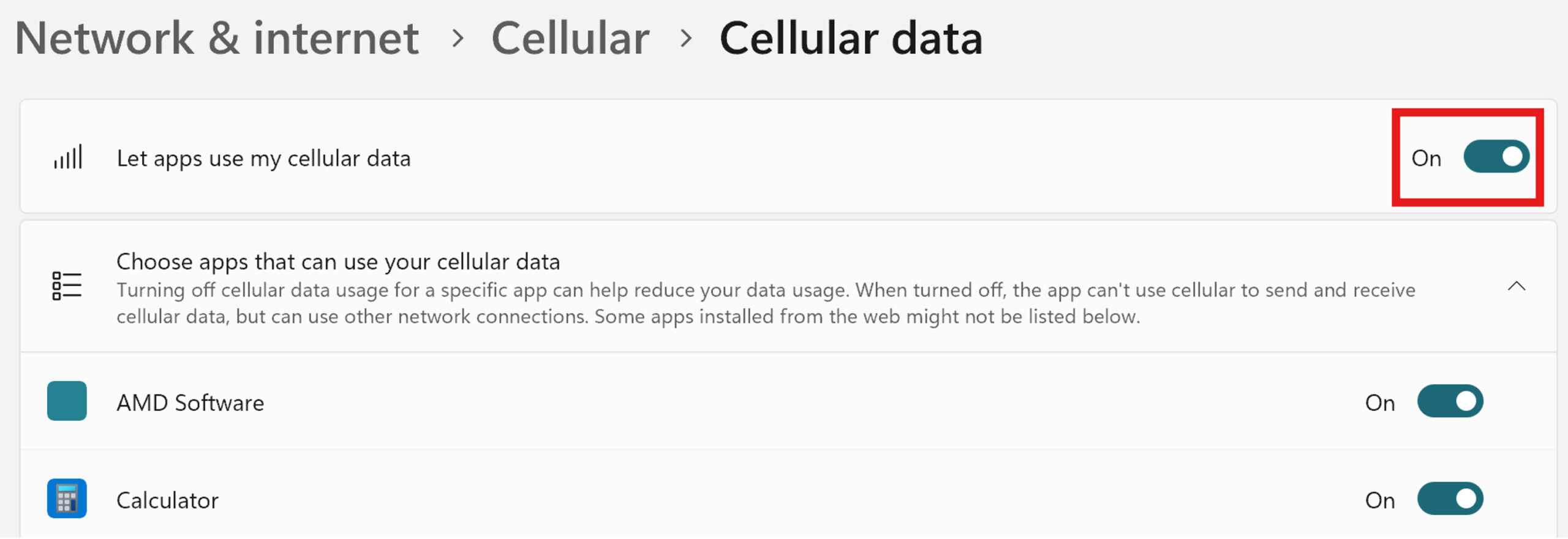
- Toggle “Let apps use my cellular data” to “On” to ensure all applications have necessary access to data.
13. Once these steps have been completed, your device can be managed in the HP Go Management Console.
If you require further assistance, please contact HP Support.