
Tags make it easier to group, filter, and search SIM cards. A SIM card can have multiple tags.
Search for Tagged SIM Cards
You can search in two ways:
1. From the Tags Page
- Go to "Tags" in the left-hand menu.
- Each tag shows the number of associated devices.
- Click the number below a tag to view devices.
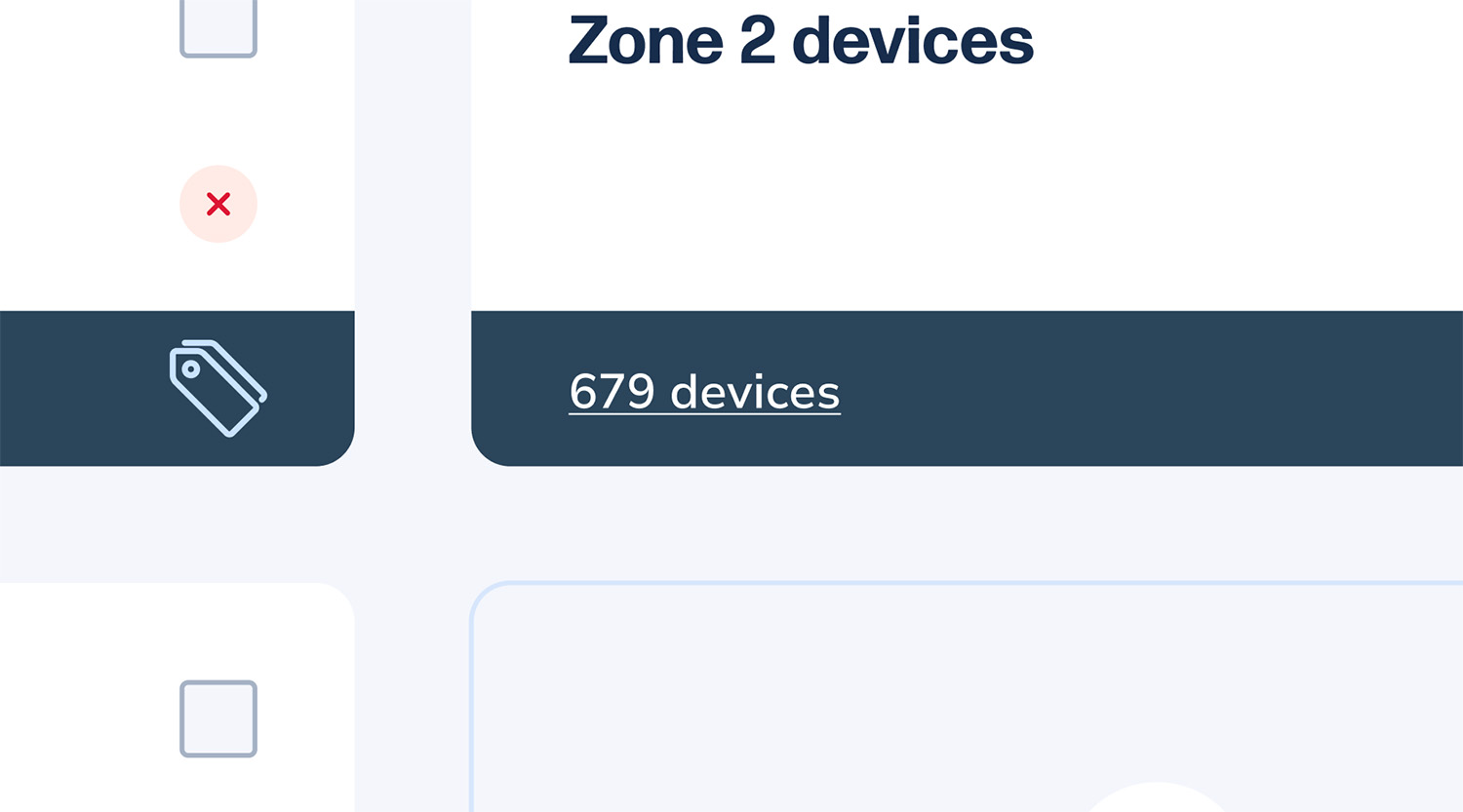
- You’ll be redirected to the Device Pool with the tag filter applied.
- To remove the filter, click the “X” next to the tag under the search bar.

2. From the Device Pool
- Go to "Device Pool" in the left-hand menu.
- Click “Filter” beside the search field.
- Select “Tags” from the dropdown.
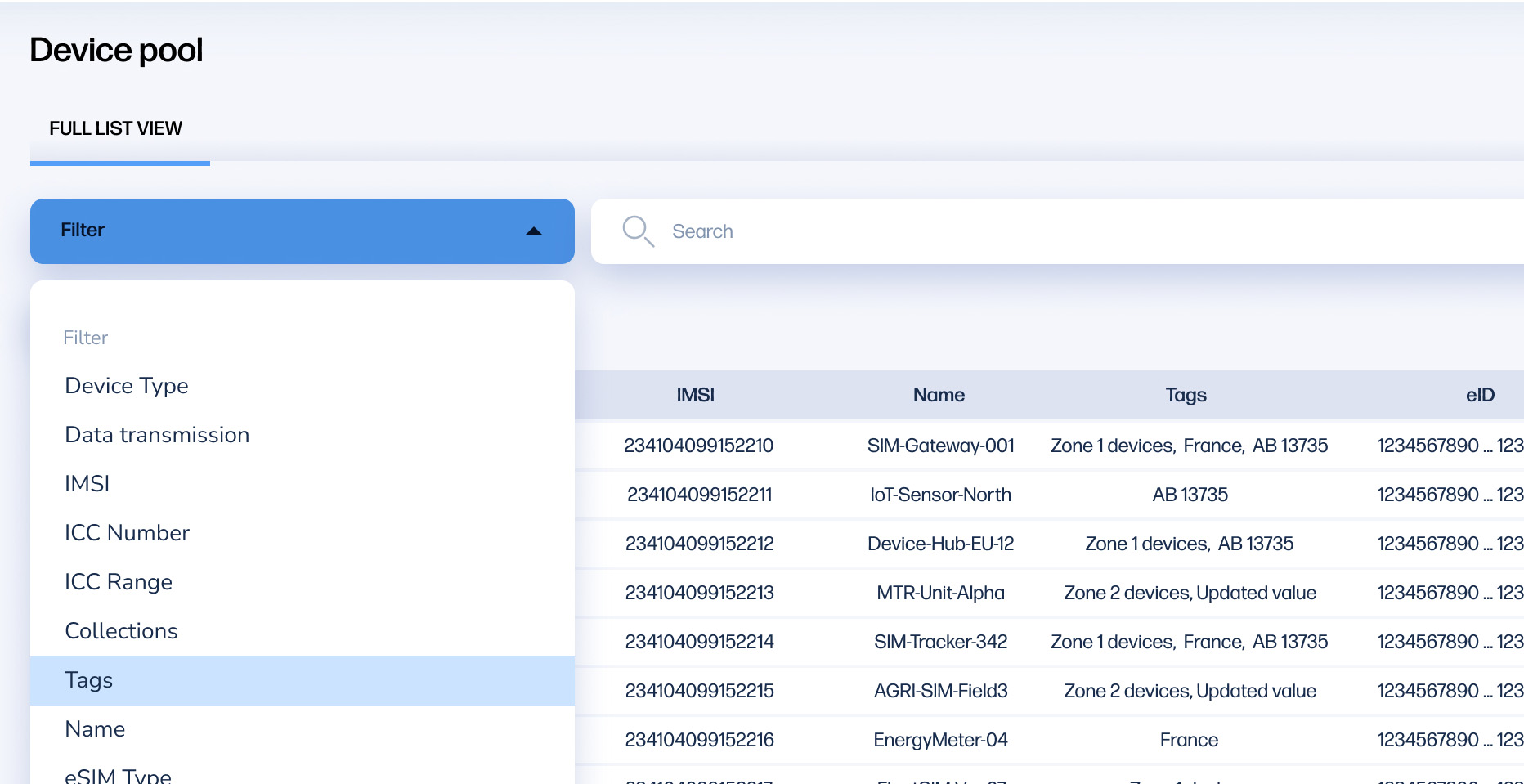
- Choose the tag you want and click “Add”.
- The SIM cards with that tag will be displayed.
- To remove the filter, click the “X” under the search bar.
Other Tag Operations
Add Devices to an Existing Tag
- Go to the Device Pool.
- (Optional) Apply filters to narrow your search.
- Select one or more SIM cards.
- Click “Action” → “Add/Remove tags”.

- In the popup, either:
- Select existing tags, or
- Create a new tag by entering a name and confirming with the green arrow.
- Click Save to apply tags to selected SIM cards.
Rename a Tag
- Go to the "Tags" page.
- Select the tag you want to rename.
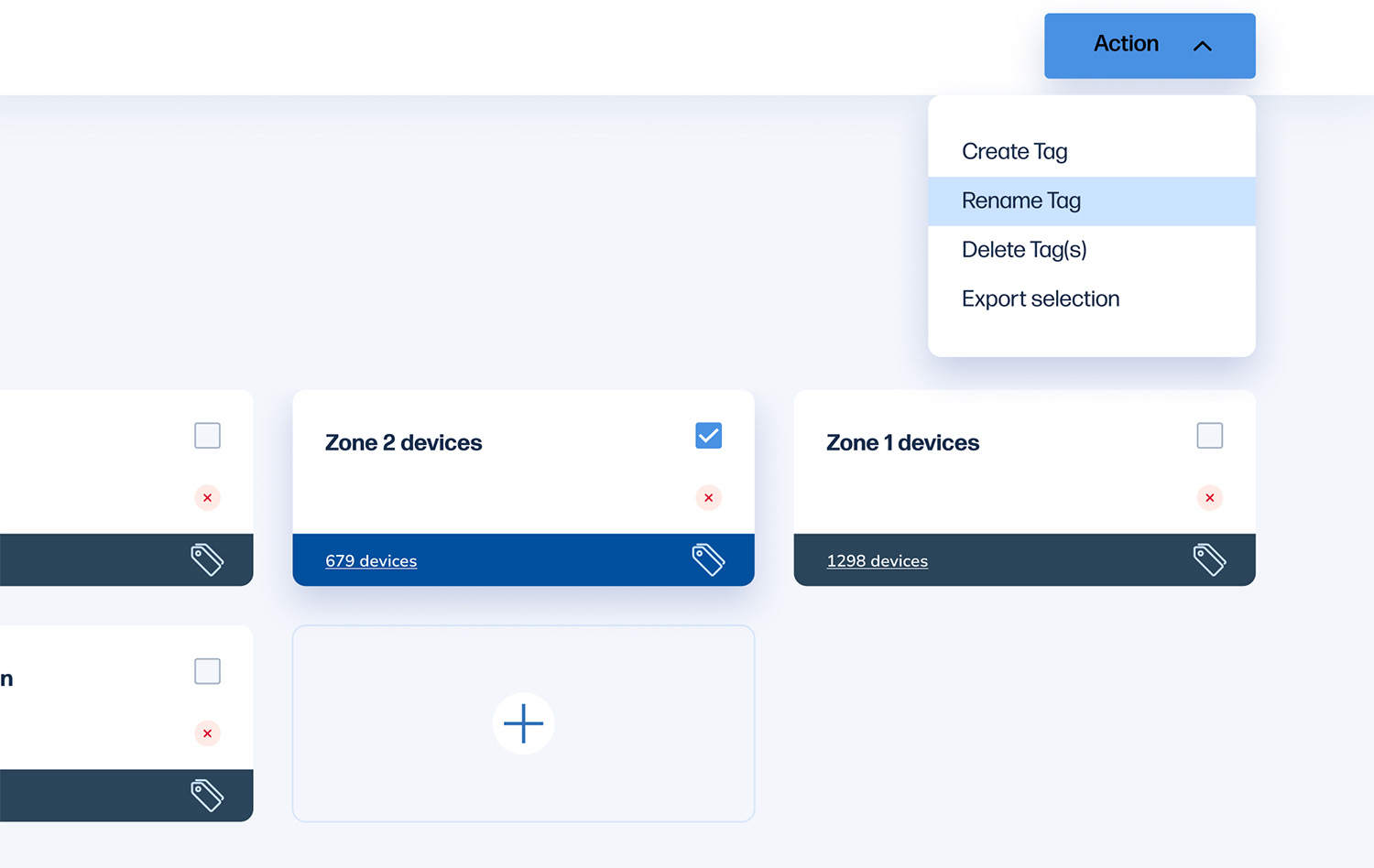
- Click the “Action” menu and select “Rename Tag”.
- Enter the new name and click Save.
Delete a Tag
- Go to the "Tags" page.
- Select the tag you want to delete.
- Either:
- Click “Delete Tag” in the Action menu, or
- Click the red Delete button in the tag box.
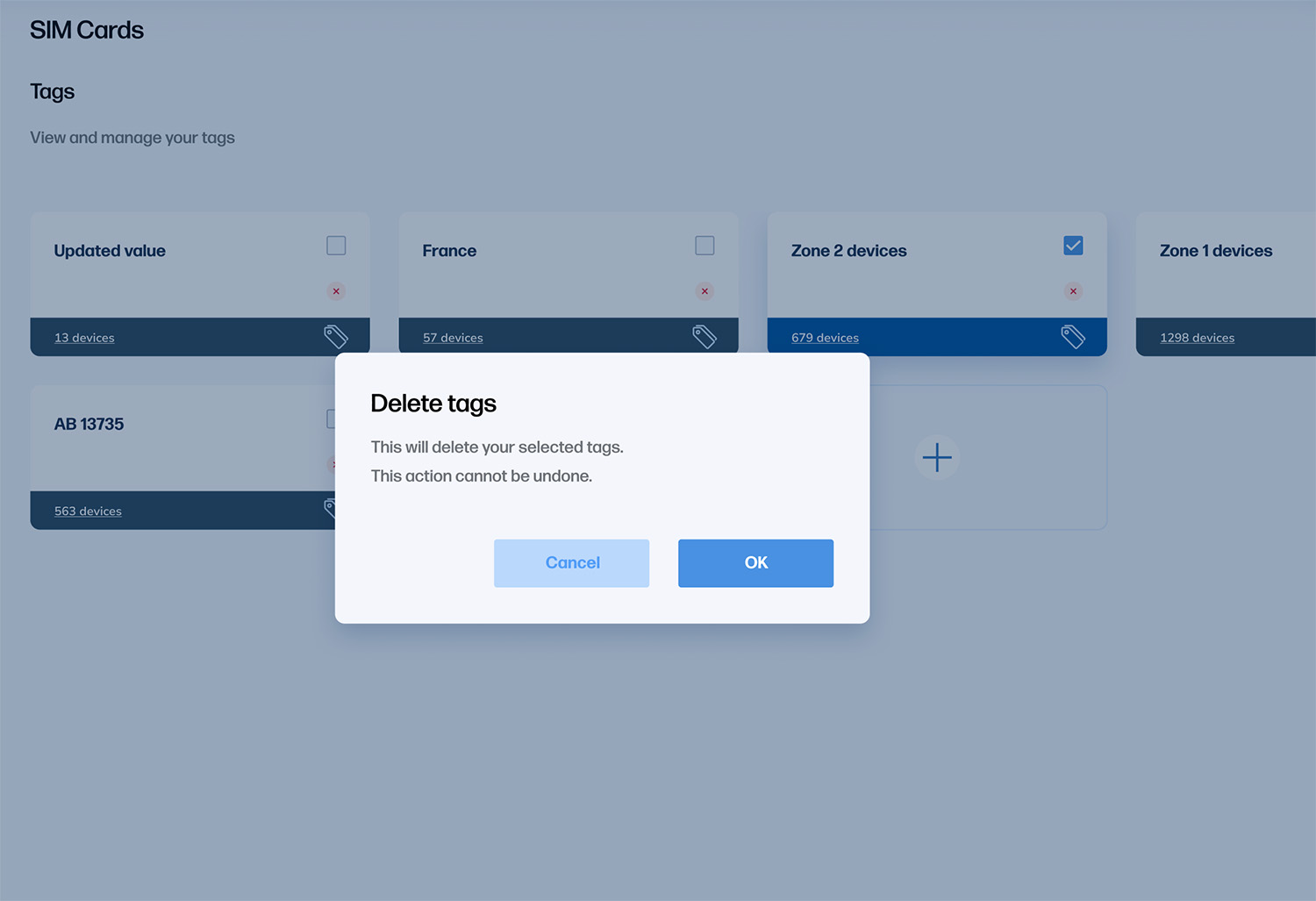
- Confirm the deletion in the popup.
Export Tagged SIM Cards as CSV
- Go to the "Tags" page.
- Select the tag you wish to export.
- Click the “Action” menu and choose “Export selection”.
- You will receive an email when the export is ready.
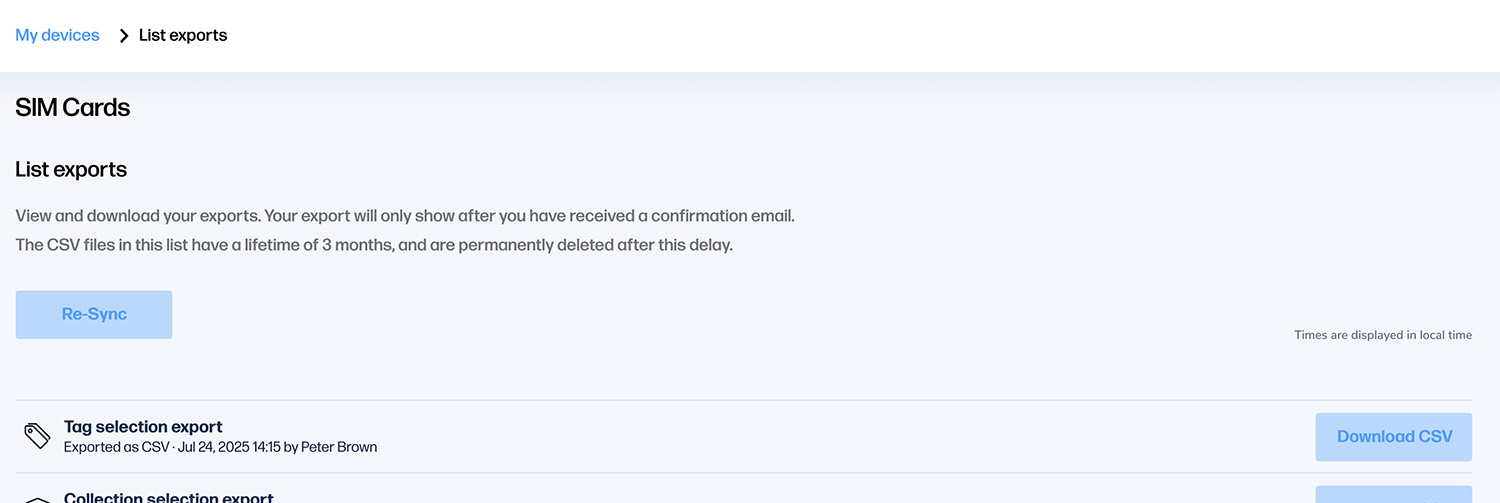
- Click “Go to list exports” to access the downloads page.
- Download the CSV from the export list.